

All roles in reviewing results
As coach
Review and approve results as coach
Check your own submitted team sheet. If there is a query, provide confirmed facts to the recorder and league leadership instead of maintaining a second report.
Your next steps
Check your own submitted team sheet. If there is a query, provide confirmed facts to the recorder and league leadership instead of maintaining a second report.
- 01
Find your own submitted team sheet
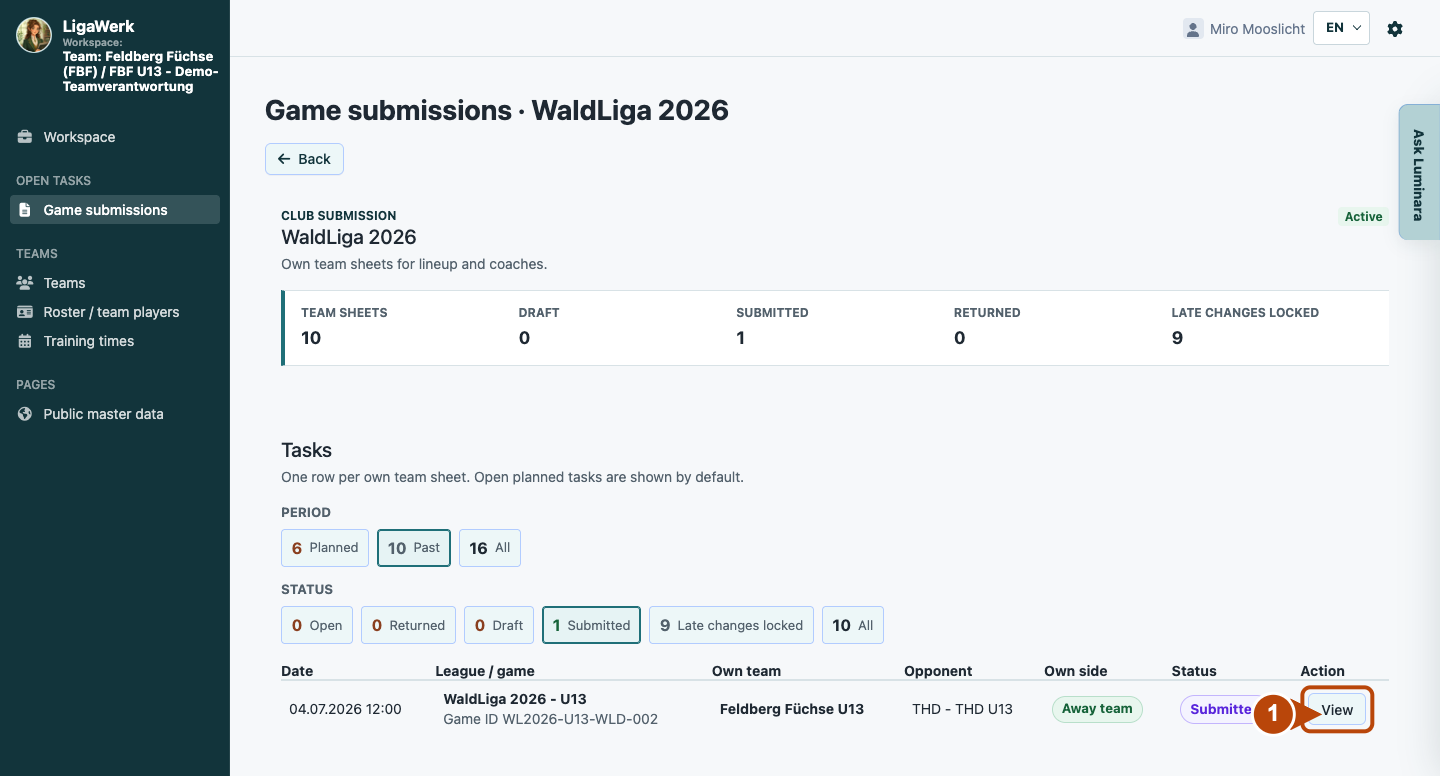
Find the relevant game in your own workspace. For past games choose the appropriate time filter and open your team sheet with “View”.
- 02
Check details and clarify the query
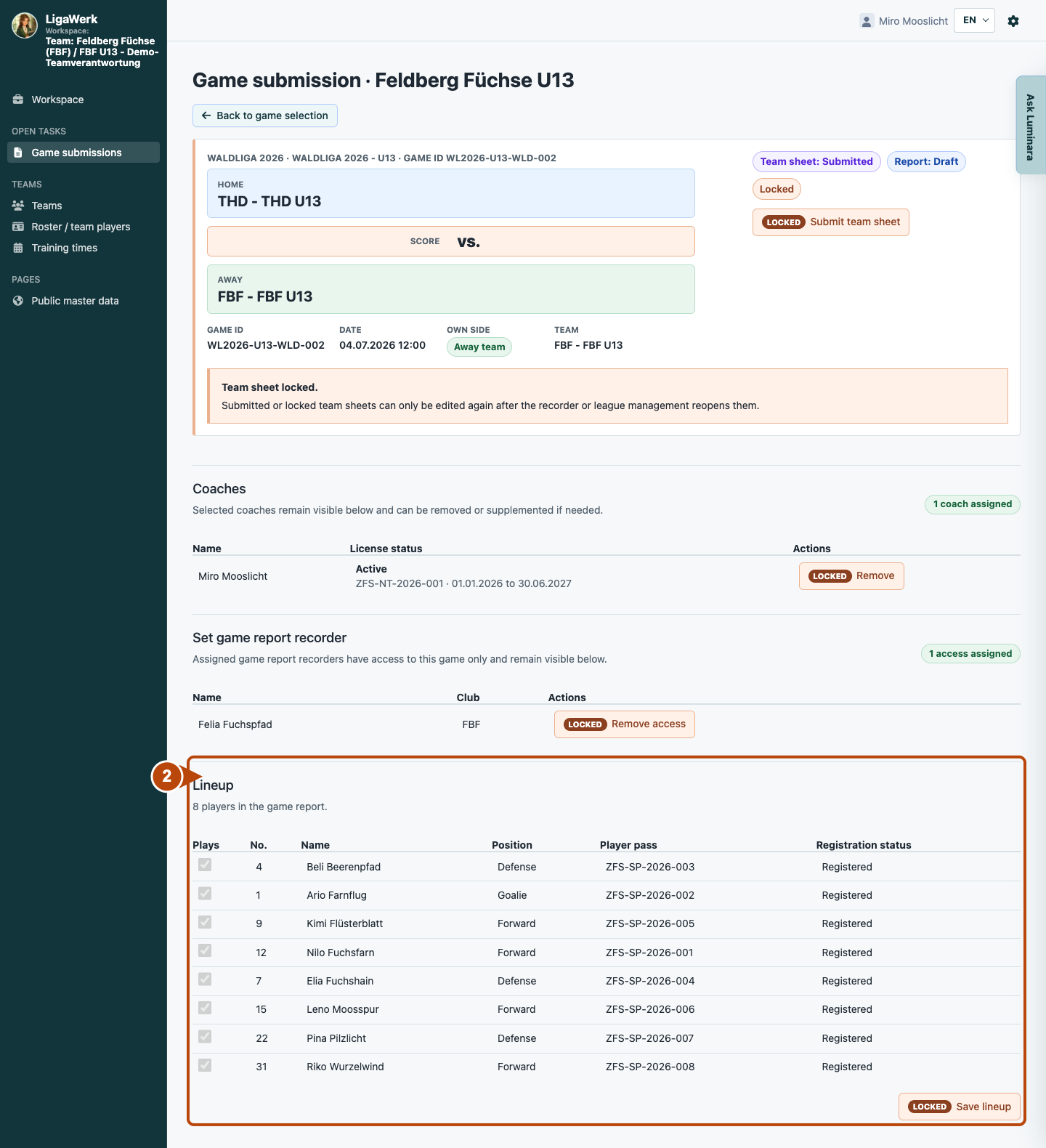
Check your own lineup and coach details. Provide confirmed facts to the recorder or league leadership when queried. If the sheet is locked, arrange any necessary reopening with an authorised role.
A coach profile alone does not grant management access. With team responsibility you can see your own team sheet. A referee objection does not reopen a locked sheet; arrange any necessary reopening with an authorised recorder or league manager. You do not approve the full report.
A look inside the application
The images show real local application states. The correction chain uses the same report; other roles show their own authorised games. Feedback, correction requests and approval are separate actions.
The number in the screenshot matches the step. The arrow and frame show where to carry out the action.
Game submissions → Season → Your team sheet
1 · Find your own submitted team sheet
- What you do
- Find the relevant game in your own workspace. For past games choose the appropriate time filter and open your team sheet with “View”.
- How to recognise the result
- You see your own details and submission state without managing other teams.
Number 1 highlights the section described in this step. The visible game details are a synthetic example.
Your game submission → Coaches and lineup
2 · Check details and clarify the query
- What you do
- Check your own lineup and coach details. Provide confirmed facts to the recorder or league leadership when queried. If the sheet is locked, arrange any necessary reopening with an authorised role.
- How to recognise the result
- Your team sheet remains the shared reference. You do not make the final league decision.
Number 2 highlights the section described in this step. The visible game details are a synthetic example.
How to start in the demo
Team management · Your signed-in demo starts in your own authorised workspace with the current active season. Choose a relevant game; recording and league review use different permissions.
The demo opens a new tab, signed in to the matching workspace. This explanation stays open.