

As an official
Record a game as an official
Your information can be linked to the correct game and events. Responsibility and follow-up questions are clearly allocated.
Your next steps
As a timekeeper, penalty-bench official, tournament director or game-day helper, supply information from your assignment to the recorder. First check the task actually assigned to you.
- 01
Read your specific assignment
Check game day, venue, teams, time and “Own role”. Timekeeping, penalty bench and tournament management are different tasks.
- 02
Supply confirmed information
Agree with the recorder how times, period scores, penalties and special incidents are handed over. Identify game, team, person and time clearly; clarify uncertain information with referees.
- 03
Check recording access separately
If you are to record the report yourself, obtain explicit approval as a recorder. An official assignment or timekeeper licence alone does not replace it.
A timekeeper or official slot grants no recorder access. The assignment overview is read-only. To enter the report yourself, you need separate club approval or a league assignment as a recorder. LigaWerk is not a live game clock here.
A look inside the application
The assignment overview links your own function to a game. These images show the timekeeper context; confirmed information is passed to the approved recorder. No live clock is operated here.
The number in the screenshot matches the step. The arrow and frame show where to carry out the action.
My assignments → Timekeeper
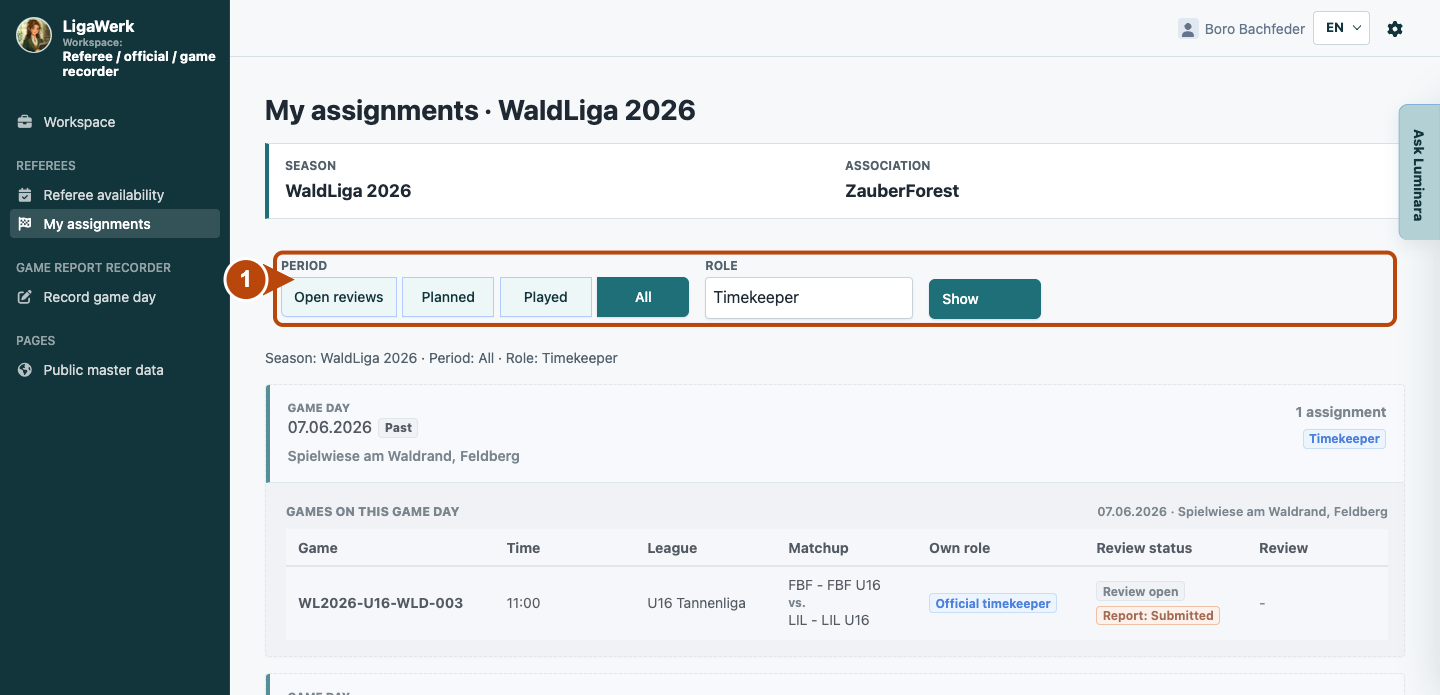
1 · Find your own function
- What you do
- Check the season. Select your function in the role filter and click “Show”. “Planned” finds upcoming assignments; “All” includes past ones.
- How to recognise the result
- The summary and list show only the selected function. This example uses All and therefore includes past assignments.
Number one marks the role filter. Timekeeping and other official functions are different tasks; choosing a filter grants no new permissions.
My assignments → Timekeeper
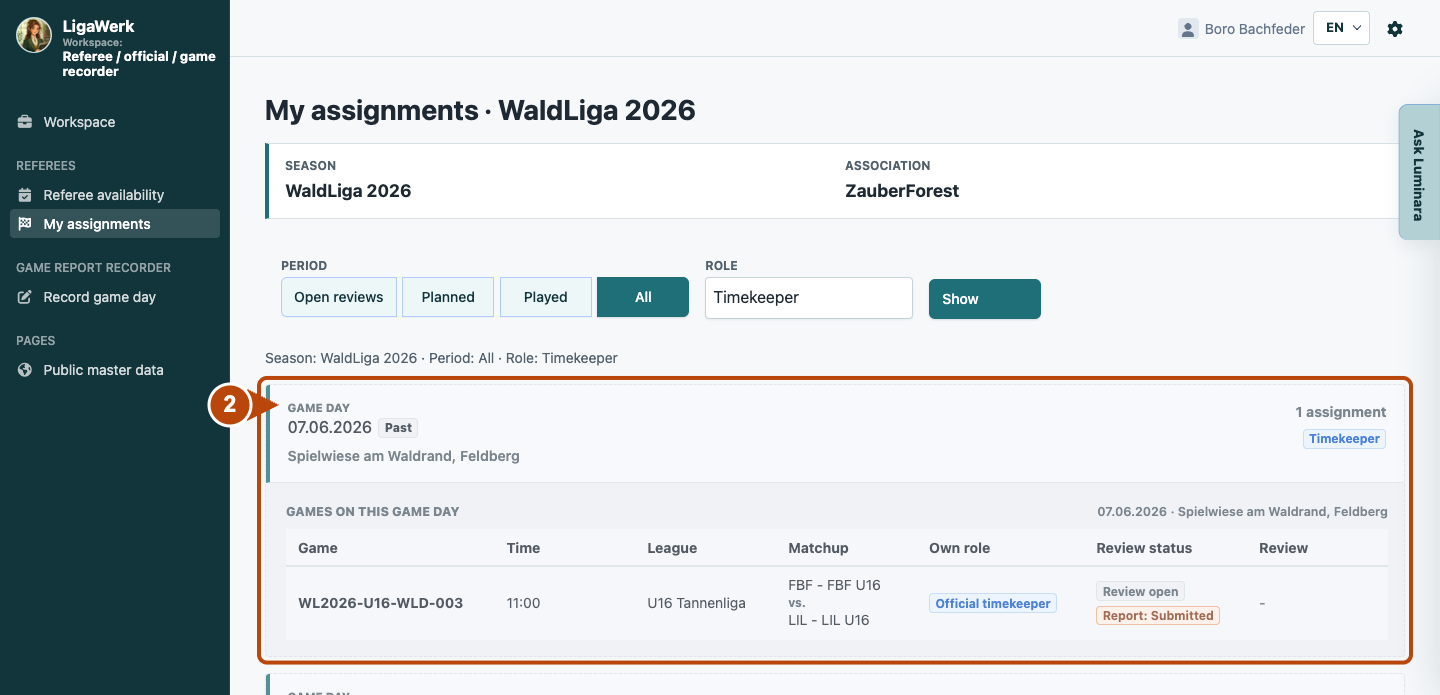
2 · Link information to the correct game
- What you do
- Check game day, venue, game ID, teams, time and “Own role”. Supply confirmed times, period scores, penalties and incidents with clear game, team and person references.
- How to recognise the result
- You know which game and function you support. The list is read-only; timekeeping or penalty-bench officials need additional recording access to enter reports themselves.
Number two covers the date, venue and complete game row with your function. A missing review button is correct here: referee review belongs to the referee role.
How to start in the demo
Referee / Official · You start in “My assignments” for the active season. Select “Timekeeper” for timekeeping or “Official” for other assigned duties. The overview only shows your own assignments.
The demo opens a new tab, signed in to the matching workspace. This explanation stays open.