

All roles in reviewing results
As league leadership
Review and approve results as league leadership
Submission, referee feedback and the correction response are in the same report. Return specific issues and record a clear final decision.
Your next steps
Submission, referee feedback and the correction response are in the same report. Return specific issues and record a clear final decision.
- 01
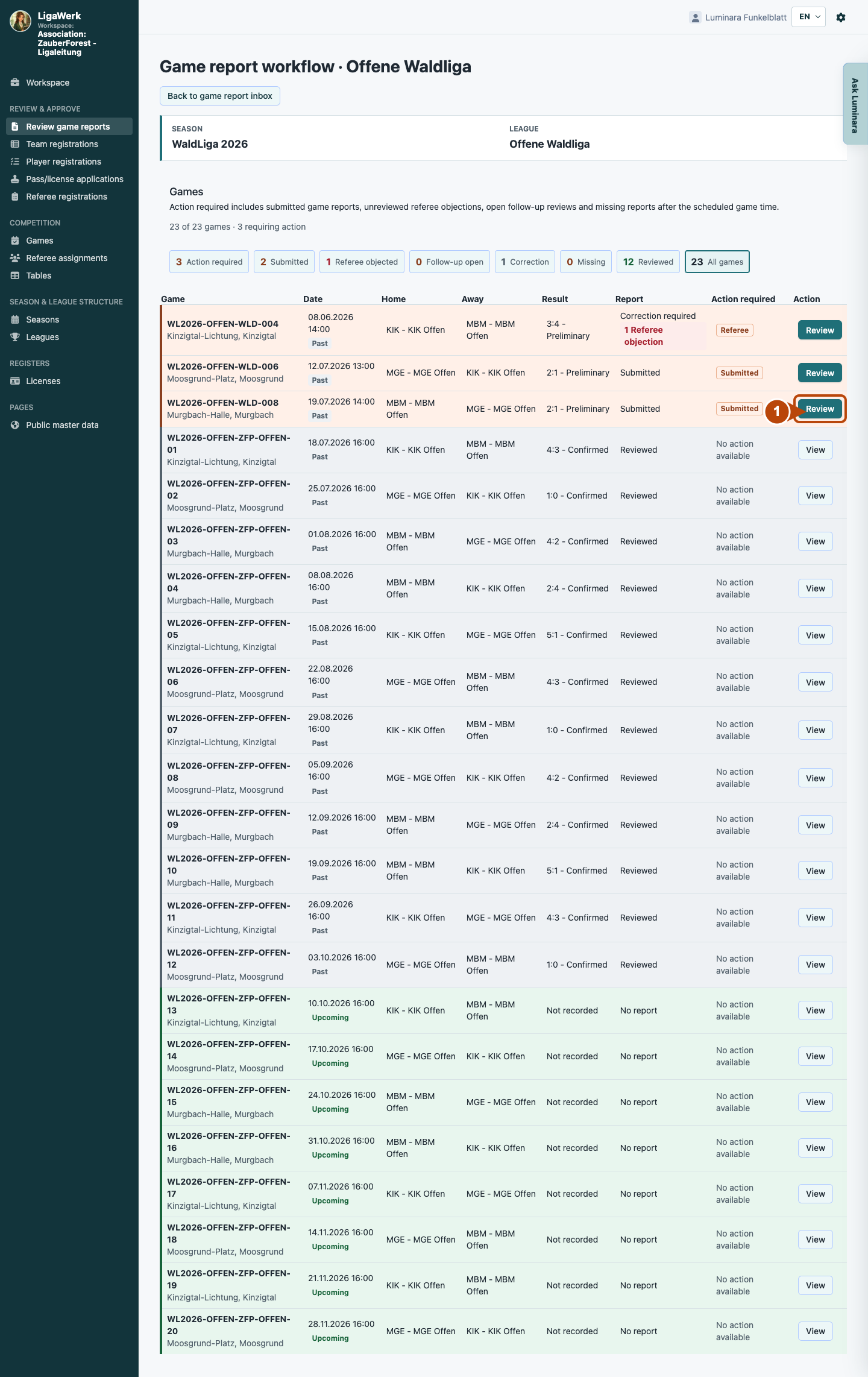
Find a submitted report
Choose the season and league. Find the game by date and teams, then open its submitted report.
- 02
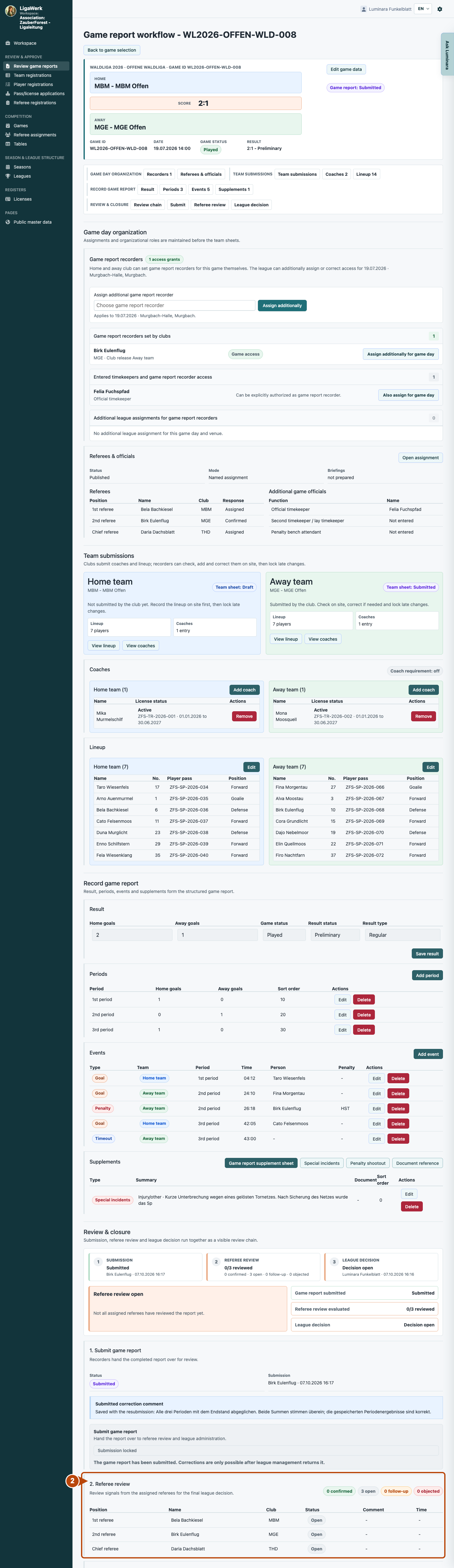
Read the review chain and feedback
Read the submission and referee feedback. Compare concerns with the result, periods, events and supplements. Deliberately assess any outstanding feedback.
- 03
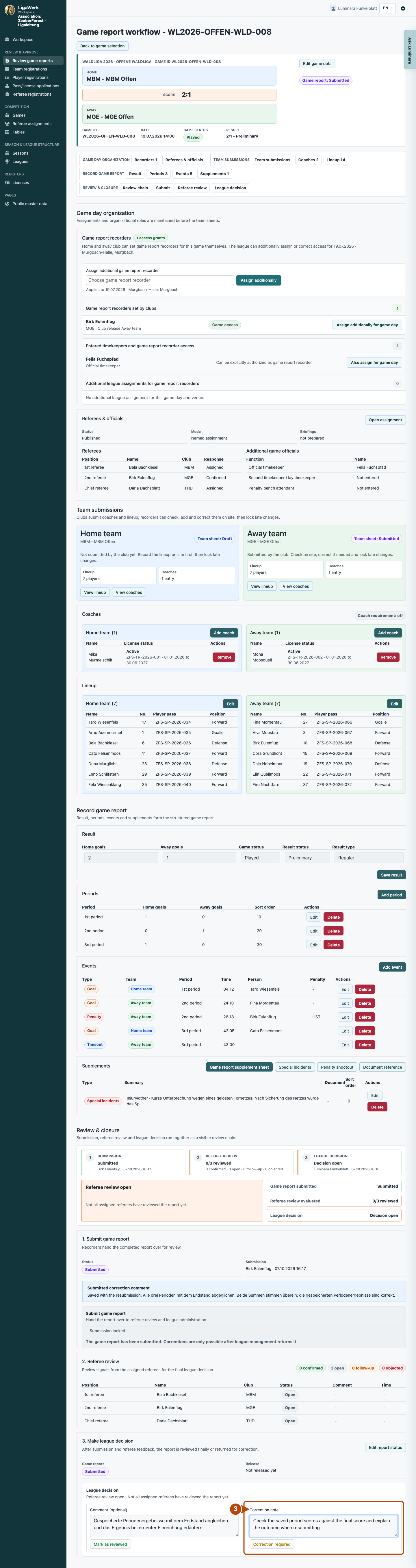
Request a specific correction
In the mandatory “Correction note”, identify the report section, relevant detail and required change. Click “Correction required”.
Only authorised result managers decide on correction requests and final report approval. Outstanding referee feedback does not technically block that decision. “Reviewed” locks the report; it does not automatically change result status to “Confirmed”. Standings use played games with confirmed results; period, fair-play and player statistics additionally require a reviewed report.
A look inside the application
The images show real local application states. The correction chain uses the same report; other roles show their own authorised games. Feedback, correction requests and approval are separate actions.
The number in the screenshot matches the step. The arrow and frame show where to carry out the action.
Review game reports → Season → League
1 · Find a submitted report
- What you do
- Choose the season and league. Find the game by date and teams, then open its submitted report.
- How to recognise the result
- The cockpit shows the selected report and its current state.
Number 1 highlights the section described in this step. The visible game details are a synthetic example.
Cockpit → Review & closure
2 · Read the review chain and feedback
- What you do
- Read the submission and referee feedback. Compare concerns with the result, periods, events and supplements. Deliberately assess any outstanding feedback.
- How to recognise the result
- You can identify unresolved issues and who supplied feedback.
Number 2 highlights the section described in this step. The visible game details are a synthetic example.
Review & closure → League decision
3 · Request a specific correction
- What you do
- In the mandatory “Correction note”, identify the report section, relevant detail and required change. Click “Correction required”.
- How to recognise the result
- The report becomes “Correction required”. The authorised recorder can resolve the specific issue. The image shows the note before saving.
Number 3 highlights the section described in this step. The visible game details are a synthetic example.
Review & closure → Submission
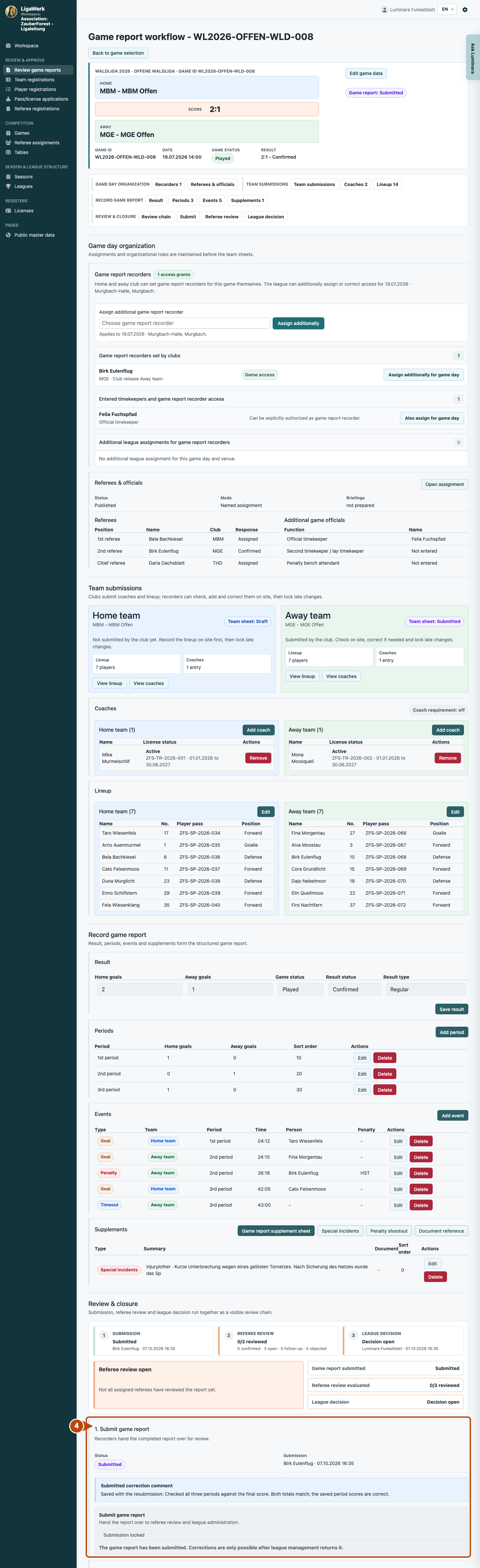
4 · Review the resubmission
- What you do
- Open the same report after resubmission. Read the correction response and check the relevant section against the original note.
- How to recognise the result
- The saved correction response explains the follow-up; the report is “Submitted” again.
Number 4 highlights the section described in this step. The visible game details are a synthetic example.
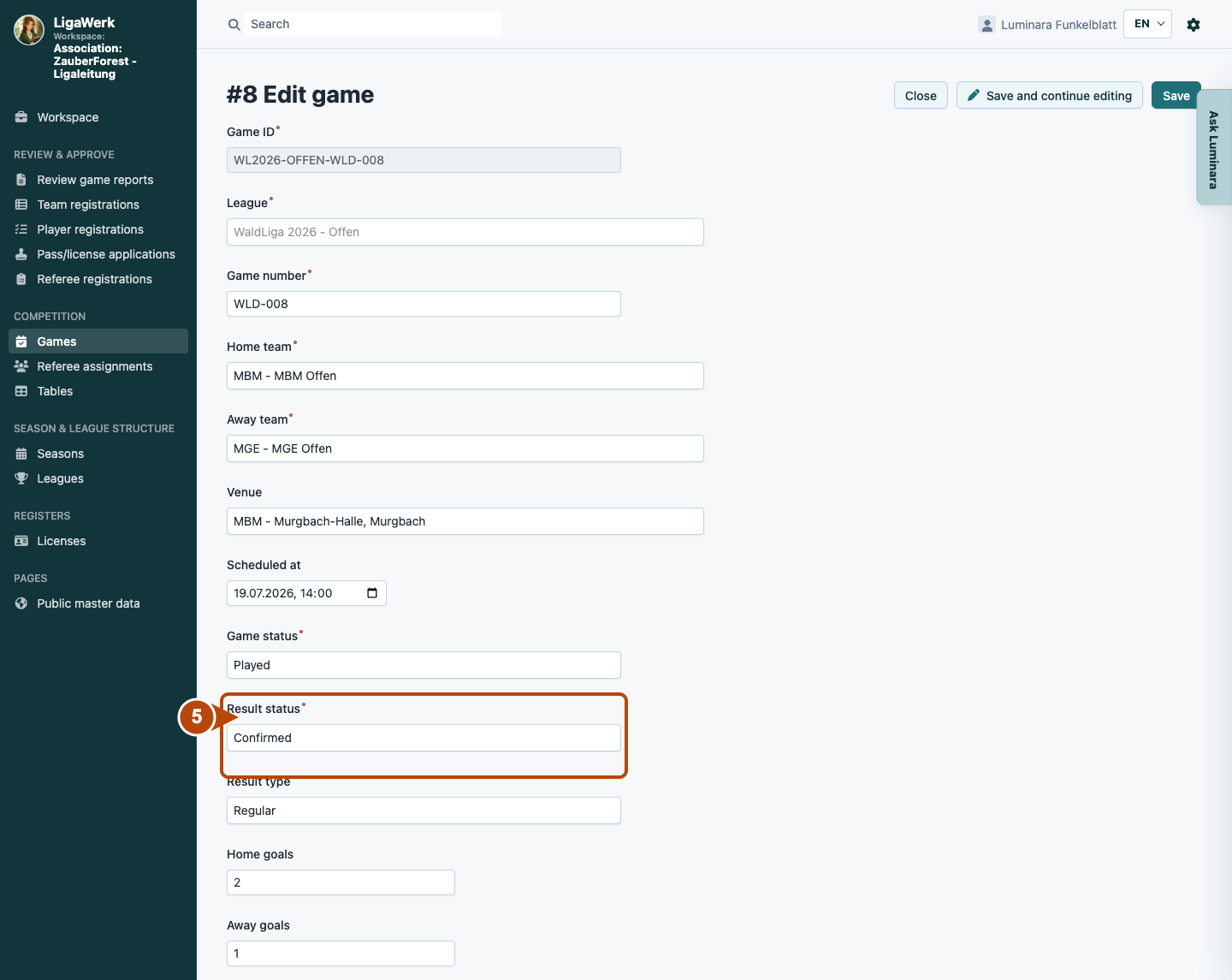
Cockpit → Edit game data → Result status
5 · Confirm the checked result
- What you do
- After checking the final score and complete matching period scores, open “Edit game data”. Set “Result status” to “Confirmed” and save. This is a separate action before approving the report; the cockpit result form is locked after submission.
- How to recognise the result
- The saved result is confirmed. The report remains submitted until a separate league decision approves it. Without a confirmed score and matching complete periods, approval is rejected.
Number 5 points directly to Result status. The form shows Confirmed selected; saving is a separate action before the report decision.
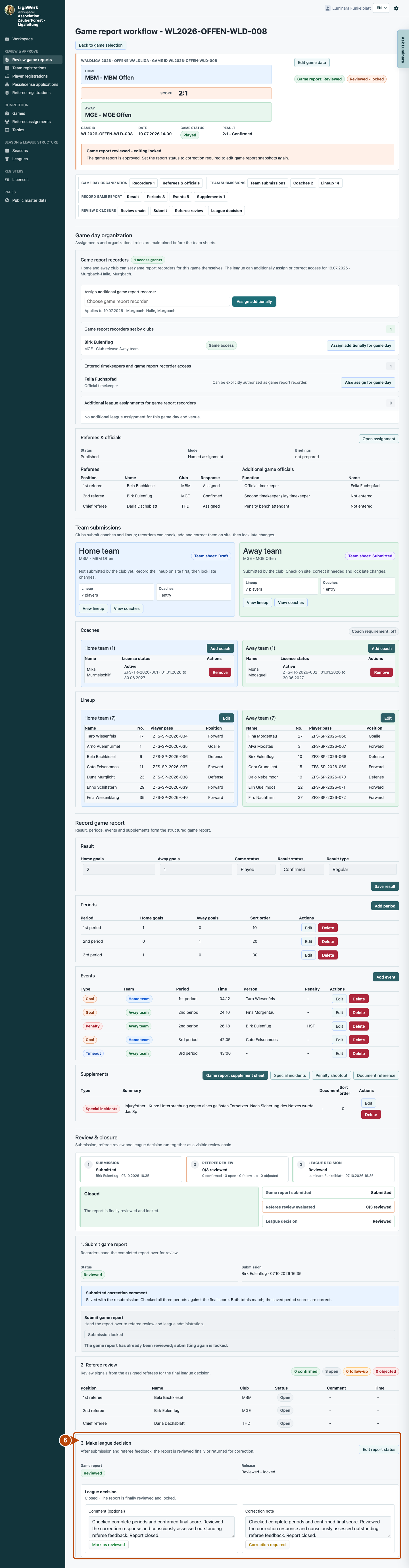
Review & closure → League decision
6 · Approve the report and check the effect
- What you do
- When the data is correct, add a decision comment if needed and click “Mark as reviewed”. Afterwards check the report status separately from the result status.
- How to recognise the result
- “Reviewed” records closure and locks report editing. Result status was confirmed separately beforehand. Standings use played games with confirmed results; period, fair-play and player statistics additionally require a reviewed report.
Number 6 highlights the final report decision. Approved report status and confirmed result status are different states.
How to start in the demo
League management · Your signed-in demo starts in your own authorised workspace with the current active season. Choose a relevant game; recording and league review use different permissions.
The demo opens a new tab, signed in to the matching workspace. This explanation stays open.