

Prepare a game · Choose another role
As a game report recorder
Prepare a game as a game report recorder
You see both teams’ details in the shared game report and recognise what is still missing before the game.
Your next steps
Open a game released to you and check the prepared home and away team sheets. Complete missing lineups and coach details on site within your permissions.
- 01
Open a released game
Find the released game in Record game day. Check the matchup and date before opening the report cockpit.
- 02
Check both team sheets
Compare the home and away team sheets. Check submission status, lineups and coach details to see what still needs completing on site.
- 03
Complete missing details
Within your permissions, edit the appropriate side’s lineup or coaches. Save changes and check the resulting state in the cockpit. Final result approval is a later task.
You need a club permission for the specific game or a league assignment for the game day and venue. Recording does not approve the result; referee review and final league approval remain separate.
A look inside the application
The images show a game actually released to the recorder, its report cockpit, both existing team sheets and the available lineup editor. This sequence does not newly save or submit anything.
The number in the screenshot matches the step. The arrow and frame show where to carry out the action.
Record game day → Released games
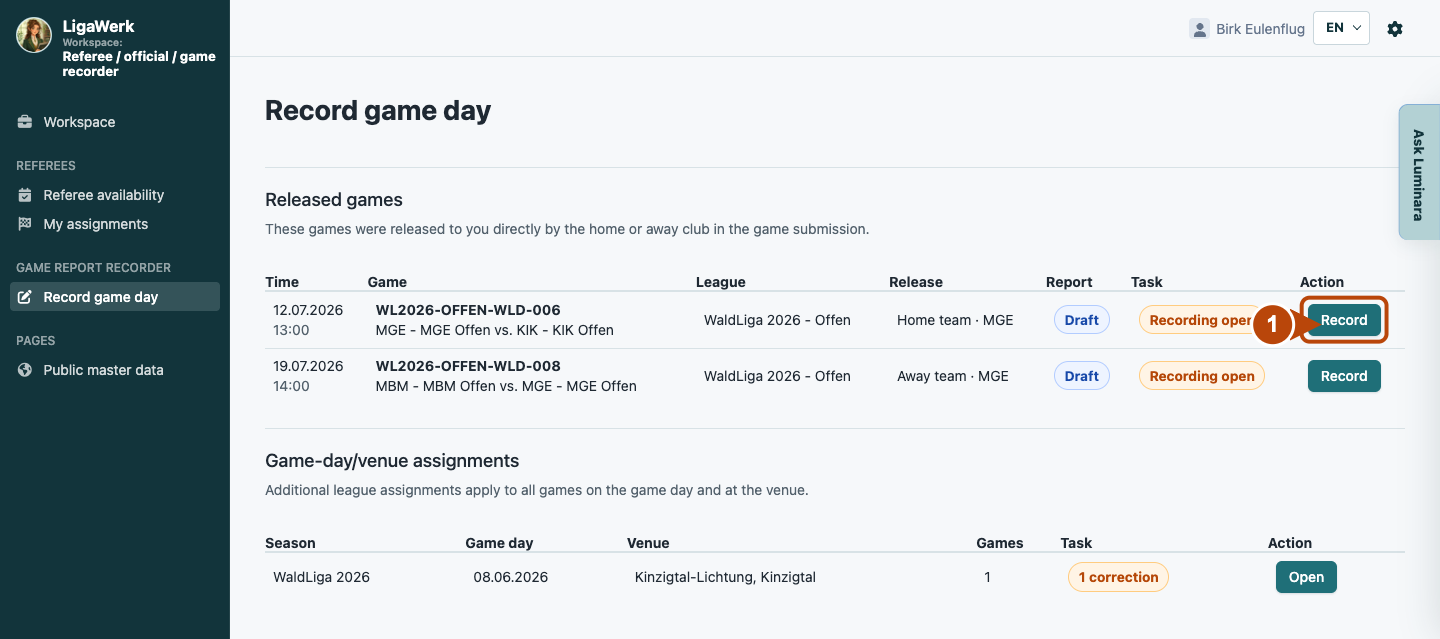
1 · Open a released game
- What you do
- Find your game by date and teams. Click “Record” for an existing report or “Create” if there is no report yet. For a league assignment, first open the game day with “Open”.
- How to recognise the result
- The Game report workflow cockpit opens for the selected game.
Number one shows the entry to the individual game. The two tables distinguish club permission from league assignment.
Game report workflow → Game header and area navigation
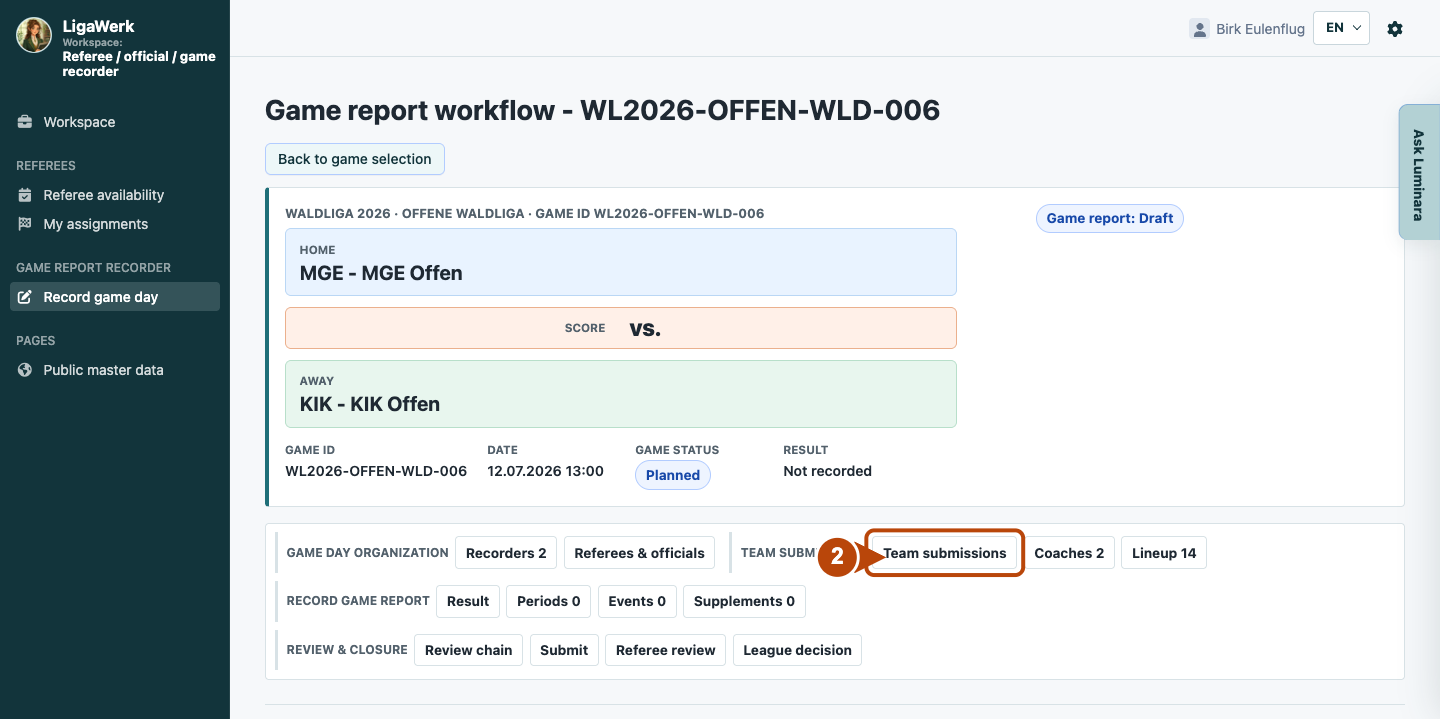
2 · Check the game context and area
- What you do
- Check the matchup, date and report status. Click “Team submissions” in the area navigation.
- How to recognise the result
- You reach the home and away team status cards within the same game report.
Number two marks the jump to the prepared team sheets. The report status in the game header applies to the whole report.
Game report workflow → Team submissions
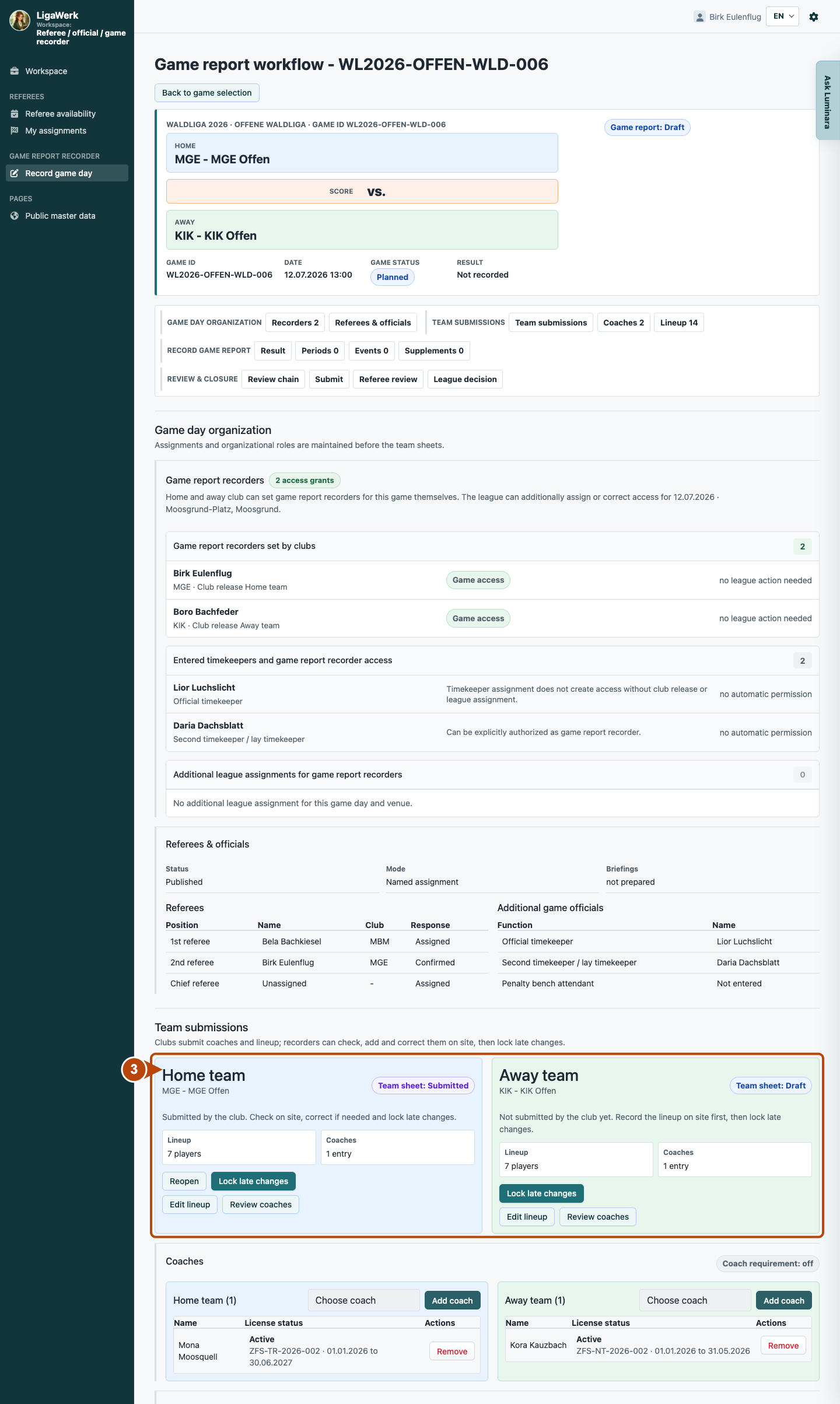
3 · Compare both team sheets
- What you do
- Check the status, lineup and coach details of both teams. For missing details, use “Edit lineup” or “Review coaches” on the affected side.
- How to recognise the result
- You can see which details are present and which side needs completing on site. Edit lineup opens the team lineup.
Number three includes both team sheets. Submitted means the club has handed its page over; the recorder’s check and additions follow afterwards.
Lineup → Home or away team
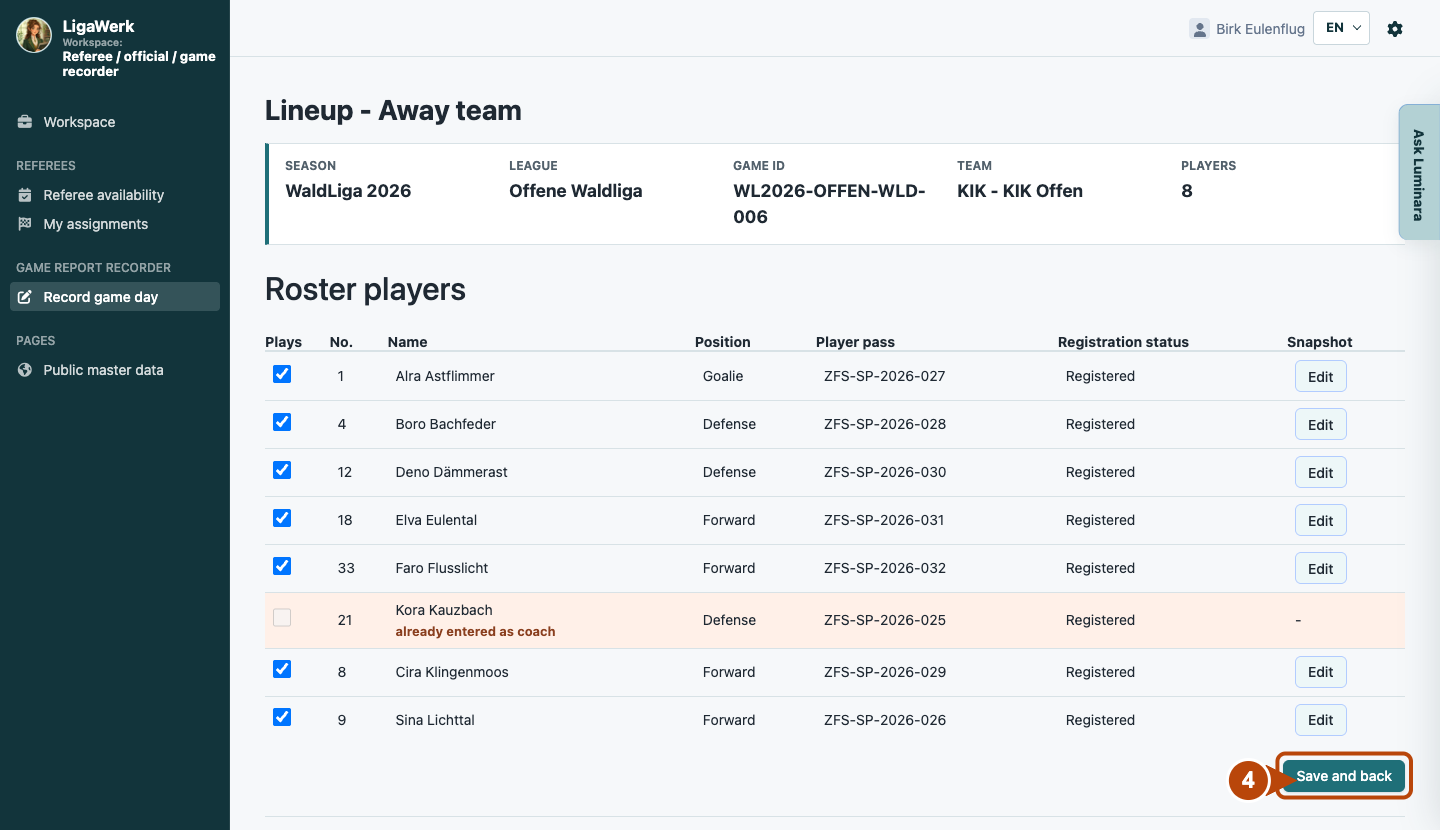
4 · Edit the lineup on site
- What you do
- Check the existing ticks and select the people actually playing. Observe highlighted player-coach conflicts. Apply changes with “Save and back”.
- How to recognise the result
- Only saving applies the lineup and reopens the cockpit. There, check the updated state of the affected team sheet.
Number four marks the save button. The image shows the existing selection and available editor; it does not show a new save.
How to start in the demo
Game report recorder · You start directly in Record game day in the Referee / Official / Recorder workspace. Open a released game with Record, or first open a game-day/venue assignment with Open.
The demo opens a new tab, signed in to the matching workspace. This explanation stays open.