

Prepare a game · Choose another role
As league management
Prepare a game as league management
You keep track of unfilled duty slots and do not have to collect game-day information separately for every person. Recipient selection and delivery history show who received a message and where delivery is missing.
Your next steps
Assign referees and officials, and inform those involved about the date, venue and duties through a briefing. Send an updated message when details change; you can also resend an existing briefing.
- 01
Check the game day
Check the season, date, venue and included games. Open duty slots show where an assignment is still missing.
- 02
Assign referees and officials
Open the game’s assignment. Check the pool, availability and licence information before saving a person in the matching duty slot.
- 03
Inform everyone affected
Prepare a briefing with date, venue and duties. Check referees, officials and the home and away clubs as recipients, and add missing contacts. Send deliberately and check delivery history. For a change, use Follow-up briefing; for the same message, use Send again.
Availability is a planning signal, not an assignment. A slot is saved only with Assign or Enter. A game or assignment change does not automatically send a briefing. Send again repeats the same message to the same recipients; communicate changed details through a new Follow-up briefing. Result review and approval follow later.
A look inside the application
The assignment images show the saved assignments for the same game. Select and save changes separately for each slot. The following briefing images show the full form, suggested contacts and example manual recipients. The briefing is unsaved; nothing was sent. Additional recorder assignments are a separate access path in the game report workflow.
The number in the screenshot matches the step. The arrow and frame show where to carry out the action.
Referee assignments → Selected season
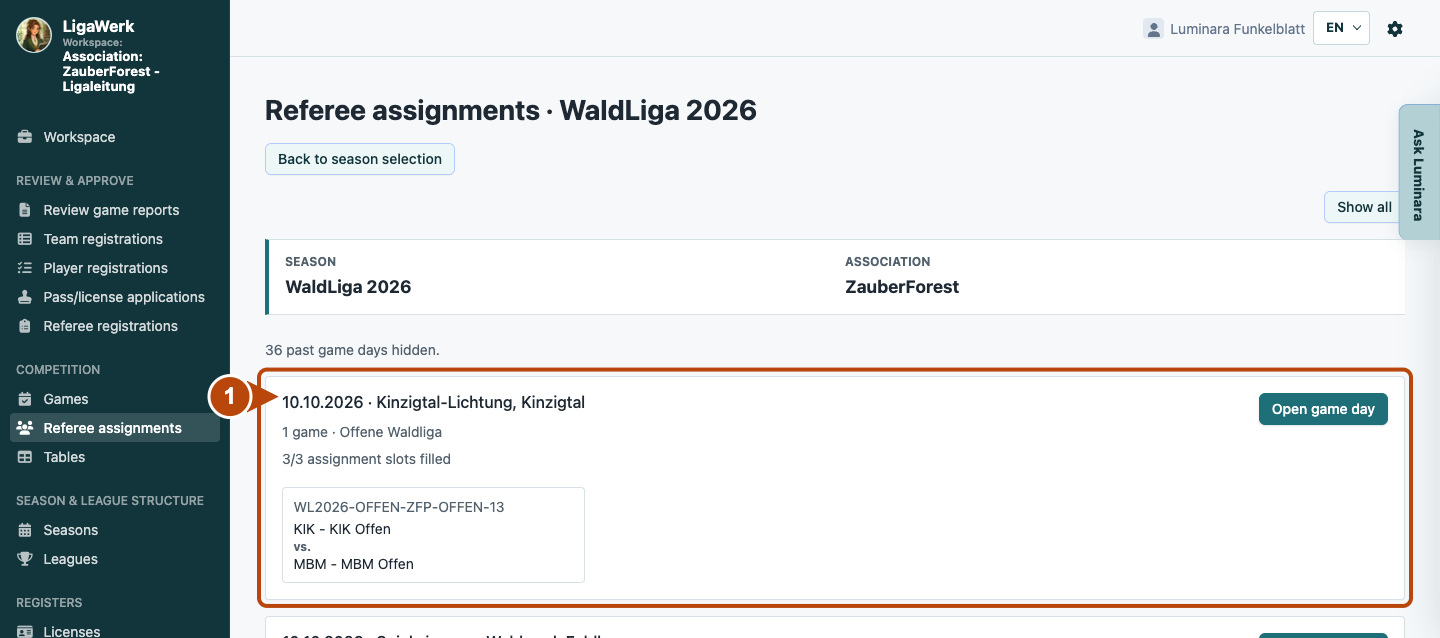
1 · Choose the game day
- What you do
- Find the game day by date, venue and included games. Click “Open game day”. Use “Show all” to reach past game days if needed.
- How to recognise the result
- The games for this game day and venue open with assignments and an availability overview.
Number one marks the entry to the game day. The overview lists the duty slots still unfilled.
Game-day view → Game
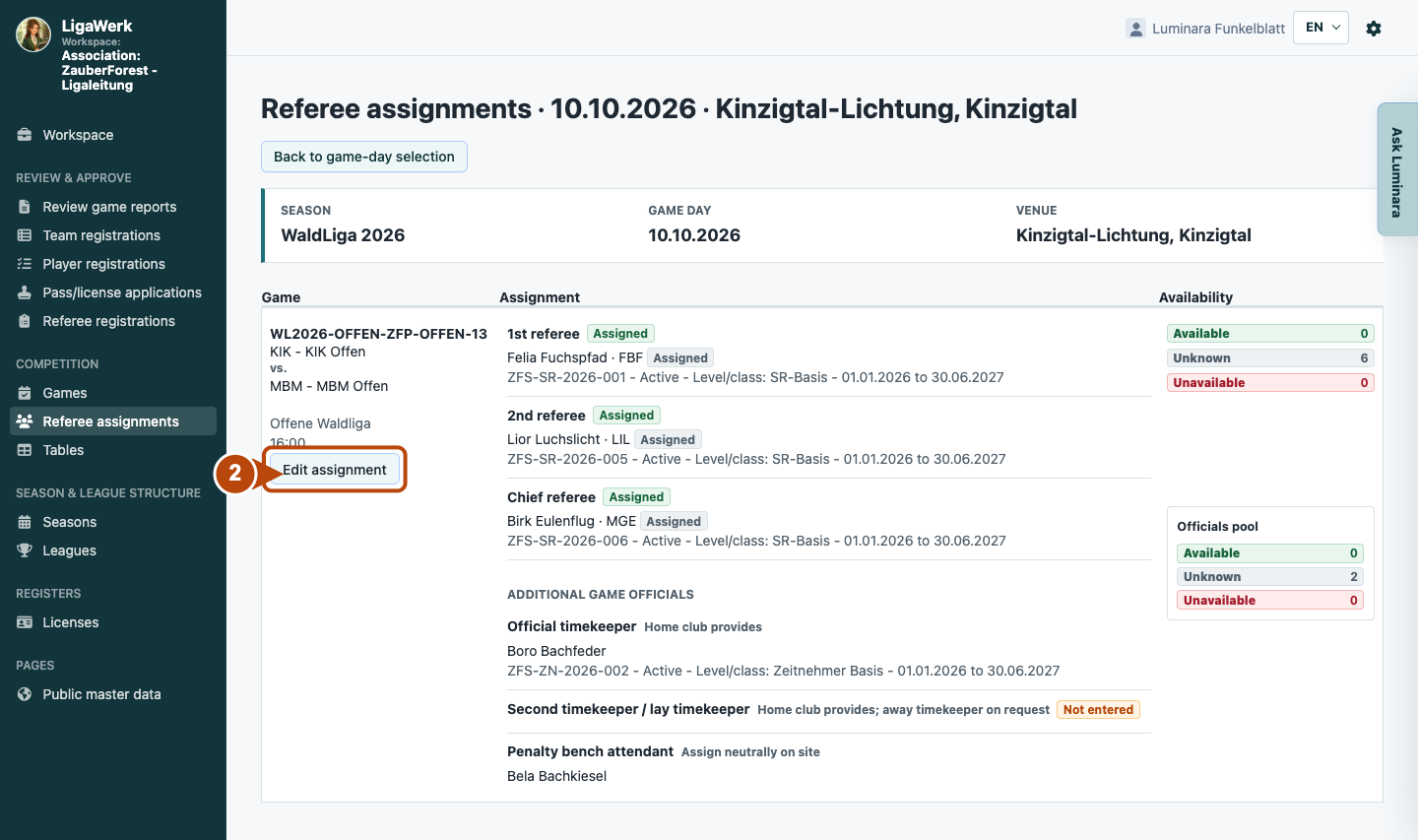
2 · Open the specific game
- What you do
- Check the matchup, time, open slots and displayed availability. Click “Edit assignment” on the matching game.
- How to recognise the result
- The single-game assignment opens with selections for referees and further game officials.
Number two marks editing the individual game. Unknown means availability feedback is missing.
Single-game assignment → Referees
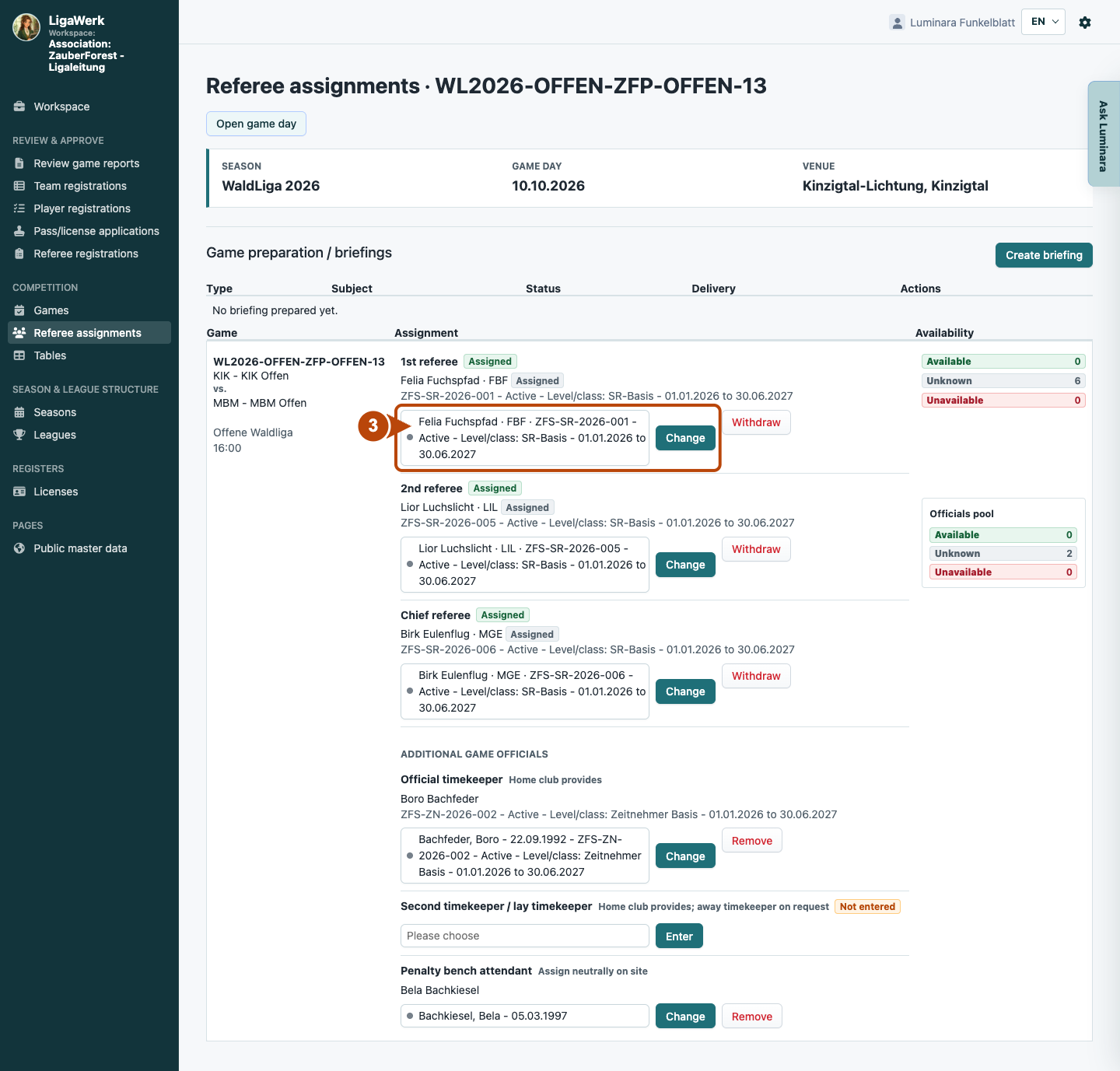
3 · Fill a referee slot
- What you do
- Open the selection for the required referee slot. Check the offered people, licence information and availability. Select the appropriate person and click “Assign”, or “Change” for an occupied slot, once the assignment is agreed.
- How to recognise the result
- After saving, the person appears in the slot. The image shows an existing saved assignment; no new assignment is saved in this sequence.
Number three includes selection and the save action. A selected name alone is not a saved assignment.
Single-game assignment → Further game officials
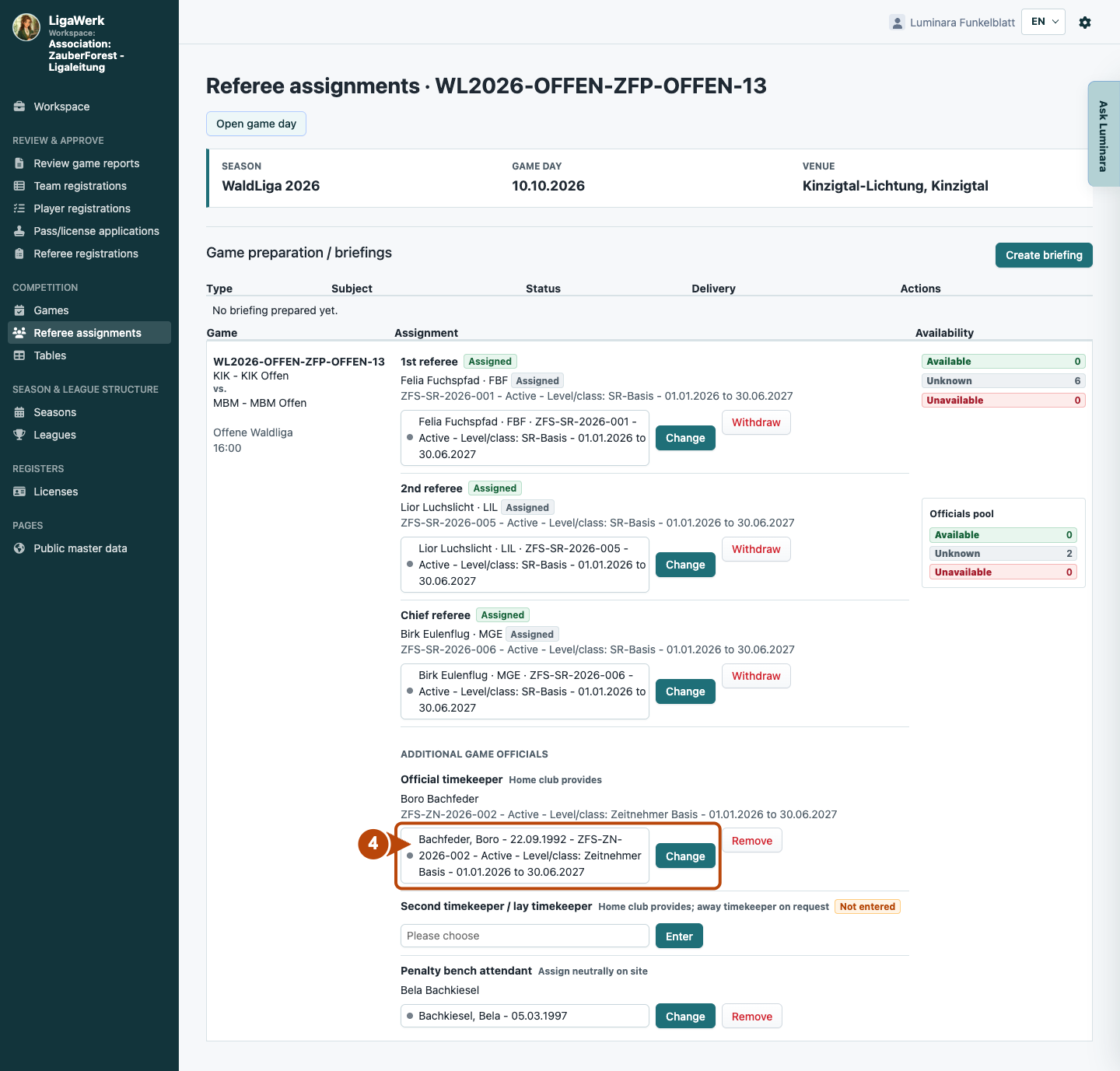
4 · Enter further officials
- What you do
- Select an offered person for the required duty slot. Check responsibility guidance, the officials pool and possible role conflicts. Save with “Enter”, or “Change” for an occupied slot.
- How to recognise the result
- After saving, the person appears in the duty slot. The image shows an existing assignment; it does not show a new save.
Number four marks timekeeping as an example. Further slots are filled separately; an official assignment does not automatically grant recorder access.
Single-game assignment → Game preparation / Briefings
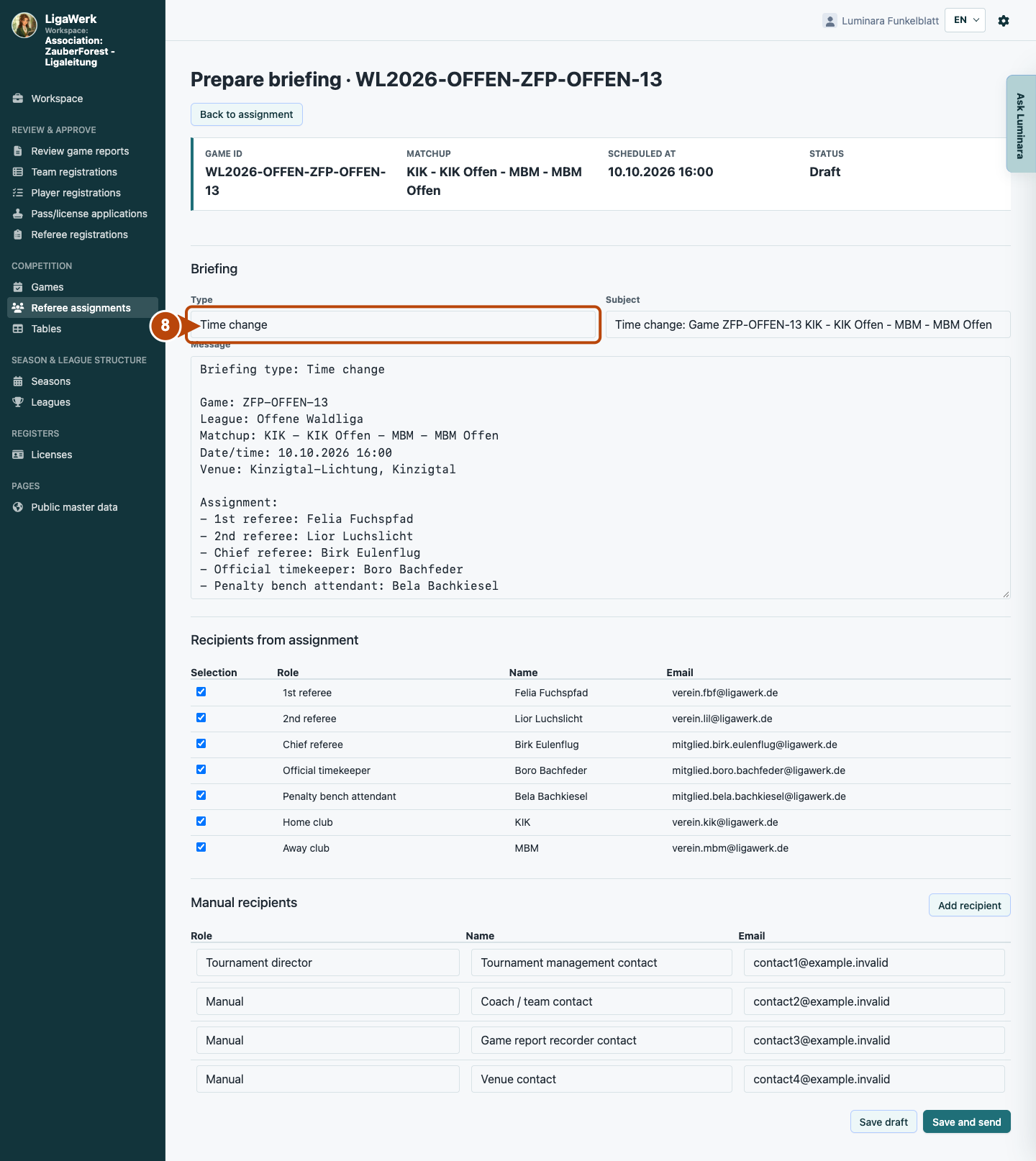
5 · Start a game-day briefing
- What you do
- Open “Create briefing” to communicate the date, venue, assignments and organisational notes together. First prepare the message, then check the recipients and send deliberately.
- How to recognise the result
- This opens briefing preparation. The image shows No briefing prepared yet; nothing has been created or sent.
Number five points to the entry for shared game-day information. Assignment, briefing preparation and sending are separate actions.
Prepare briefing → Type, subject and message
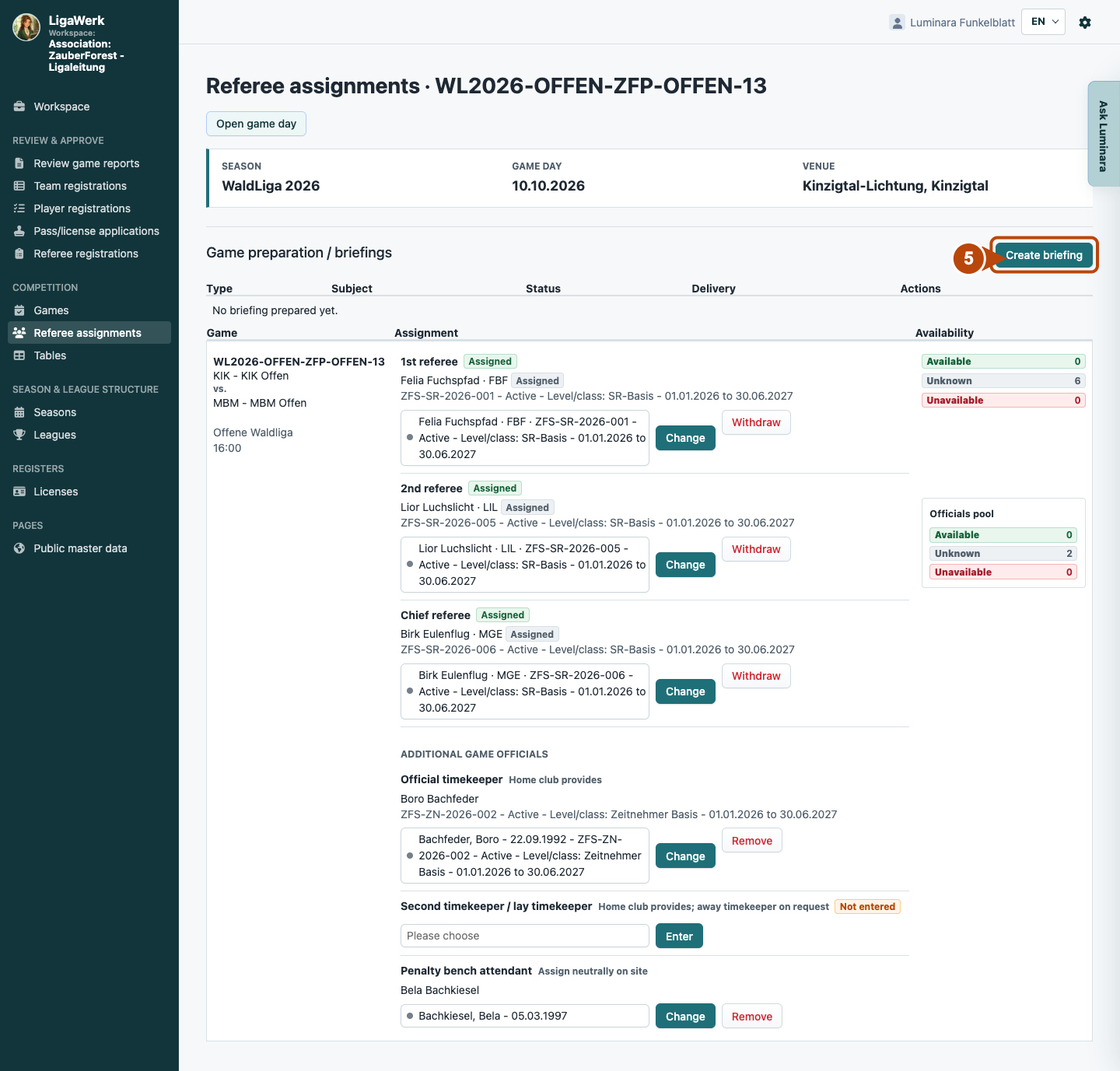
6 · Prepare a clear message
- What you do
- Select “Game preparation” and check the suggested message. Add the meeting point, arrival time, responsibilities and a contact for questions. Explain clearly what everyone needs to know and do before the game. The template includes the currently saved game and assignment details.
- How to recognise the result
- You have prepared a shared message. The image shows suggested content in an unsaved form, not a draft or delivery. After a game change, you must check existing drafts for accuracy yourself.
Number six highlights the message. Check open details and add specific guidance instead of sending an unchecked template.
Prepare briefing → Recipients from assignment / Manual recipients
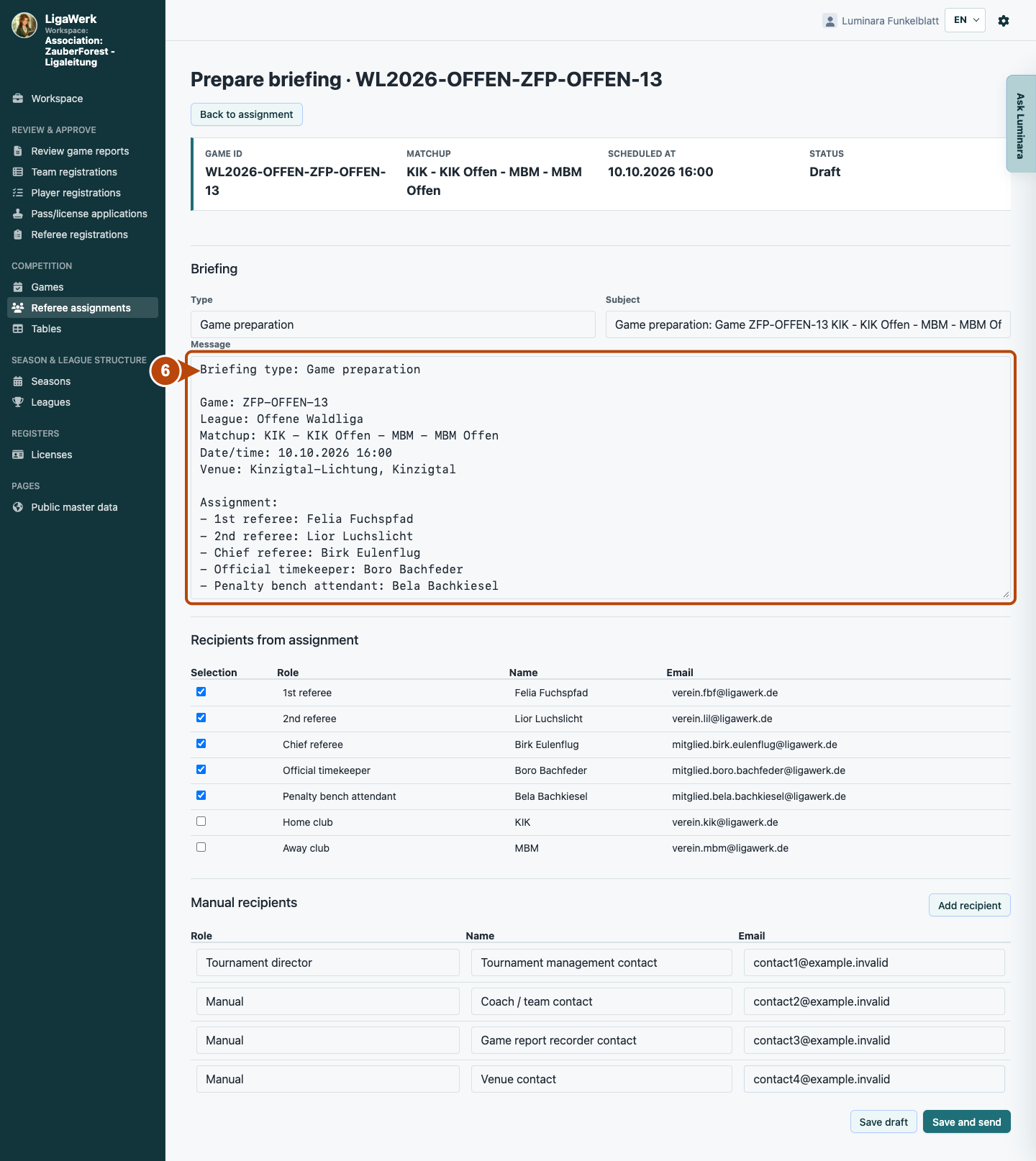
7 · Check recipients and send deliberately
- What you do
- Check referees, officials and the home and away clubs, then select the affected contacts. Add missing contacts under “Manual recipients” with role, name and email. Use “Save draft” to prepare, or “Save and send” to send by email.
- How to recognise the result
- A saved draft has not been sent. After sending, the overview and Delivery history show recipients and delivery attempts. Check failed deliveries and missing email addresses; Sent alone does not mean everyone was reached. The image shows selection and buttons before sending.
Number seven includes all recipients. Referees, timekeeping, penalty bench and clubs come from assignment, as do assigned assistant timekeepers and tournament managers. Tournament director is added freely; coaches, recorders and venue contacts use Manual. Manual contacts are unsaved examples. Players and teams are not automatically all reached — agree on forwarding.
Game preparation / Briefings → Follow-up briefing or Send again
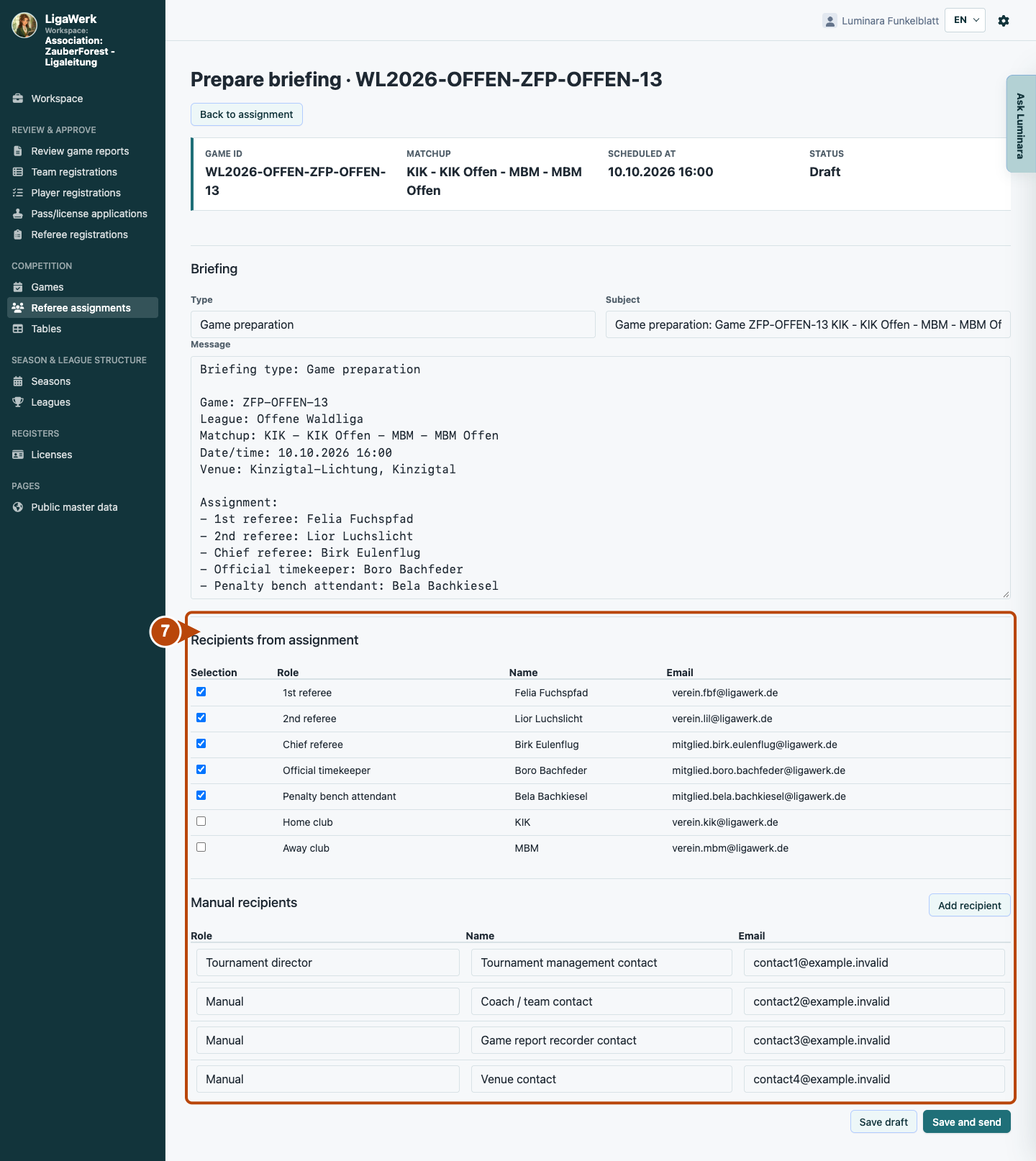
8 · Inform about changes or send again
- What you do
- If the time, game day, venue or assignment changes, first save the correct game details in the responsible workspace. On an already sent briefing, open “Follow-up briefing”. Check the type, describe the change and the currently valid details explicitly, check current recipients and send the new message. To send the same content again to the same recipients, use “Send again”; for delivery failures, use “Retry failed”.
- How to recognise the result
- A follow-up briefing is a new message linked to the earlier briefing; the earlier delivery remains traceable. Send again updates neither content nor recipients. The image shows only Time change in a new, unsaved form. Follow-up and resend actions appear in the overview only after a briefing has been sent.
Number eight marks the message type. A date change requires an updated message, not a repeat of the old date. Check a briefing marked outdated; it is not automatically corrected or sent again.
How to start in the demo
League management · You start directly in Referee assignments in the association workspace with the active season selected. Open a game day, then the assignment for the specific game.
The demo opens a new tab, signed in to the matching workspace. This explanation stays open.