

All roles in reviewing results
As game recorder
Review and approve results as game recorder
Receive a specific correction note, resolve it in the same report and explain what was checked or changed when resubmitting.
Your next steps
Receive a specific correction note, resolve it in the same report and explain what was checked or changed when resubmitting.
- 01
Read the correction note
Open your authorised game and read the specific “Correction required” note. Clarify unclear details with the responsible role.
- 02
Check and correct the relevant details
Compare saved data with confirmed facts. Correct only the actual error and save that section. This example checks the existing periods against the final score.
- 03
Explain the correction and resubmit
Briefly describe what was changed or checked in the correction response. Click “Submit game report”.
You still need recording permission for the game. “Correction required” reopens the report for further work. Resubmitting is not approval; league leadership reviews it again.
A look inside the application
The images show real local application states. The correction chain uses the same report; other roles show their own authorised games. Feedback, correction requests and approval are separate actions.
The number in the screenshot matches the step. The arrow and frame show where to carry out the action.
Record game day → Report → Review & closure
1 · Read the correction note
- What you do
- Open your authorised game and read the specific “Correction required” note. Clarify unclear details with the responsible role.
- How to recognise the result
- You know which section needs checking or correction.
Number 1 highlights the section described in this step. The visible game details are a synthetic example.
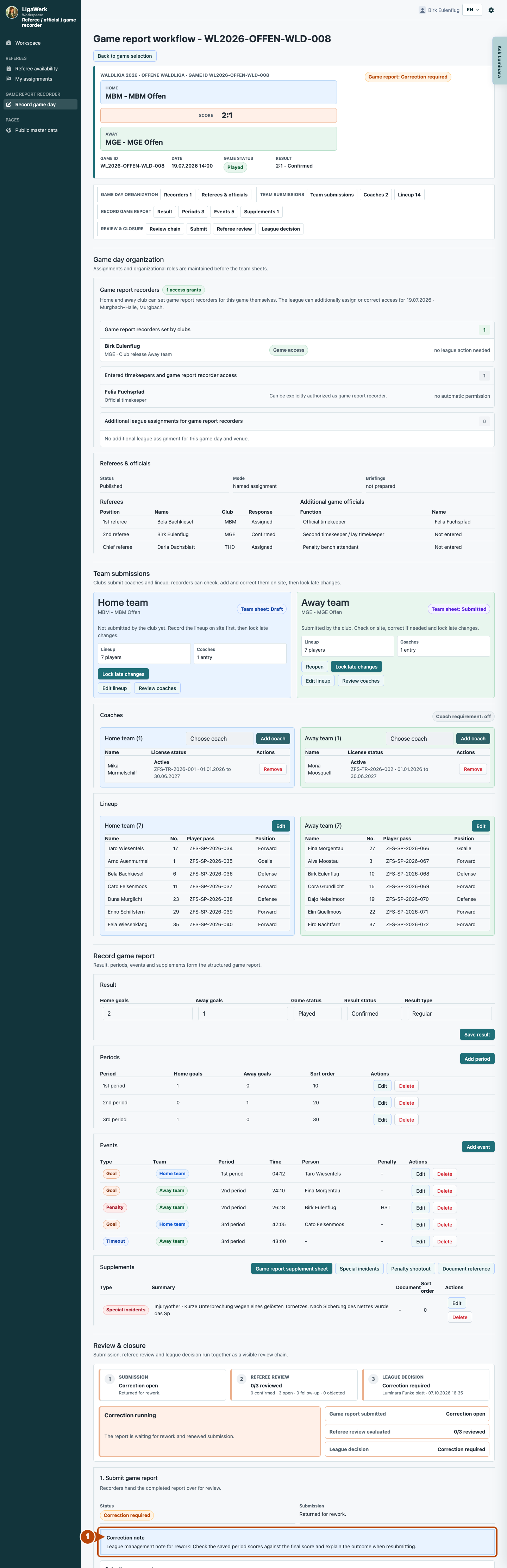
Game report workflow → Relevant section
2 · Check and correct the relevant details
- What you do
- Compare saved data with confirmed facts. Correct only the actual error and save that section. This example checks the existing periods against the final score.
- How to recognise the result
- The checked details remain in the same report. Confirming already correct data does not require inventing an edit.
Number 2 highlights the section described in this step. The visible game details are a synthetic example.
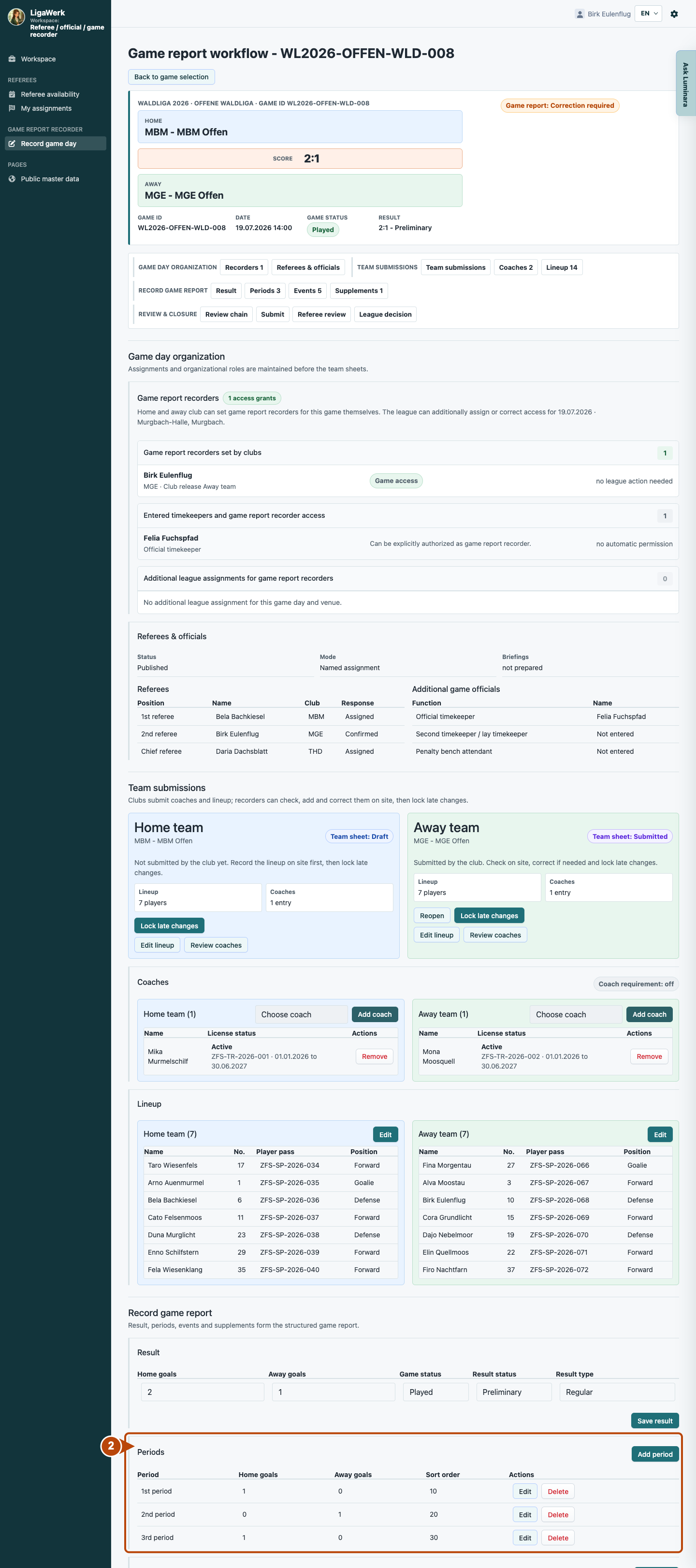
Review & closure → Submit game report
3 · Explain the correction and resubmit
- What you do
- Briefly describe what was changed or checked in the correction response. Click “Submit game report”.
- How to recognise the result
- The response is saved with the resubmission. The report becomes “Submitted” again; league leadership then decides.
Number 3 highlights the section described in this step. The visible game details are a synthetic example.
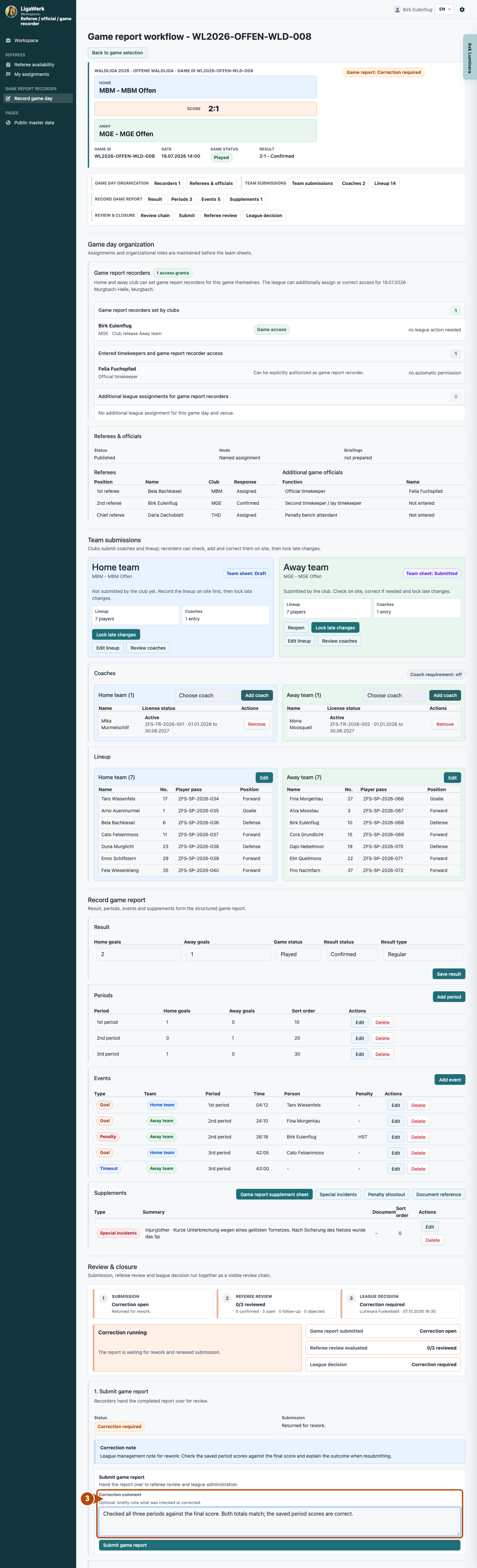
How to start in the demo
Game report recorder · Your signed-in demo starts in your own authorised workspace with the current active season. Choose a relevant game; recording and league review use different permissions.
The demo opens a new tab, signed in to the matching workspace. This explanation stays open.