

As a referee
Record a game as a referee
You find team information, result and events in the shared report and can identify discrepancies precisely.
Your next steps
Clarify game information with the recorder. After submission, read the report in your own referee role and provide understandable feedback.
- 01
Clarify details before handover
Resolve uncertain goals, penalties, times and incidents with the recorder. Recording itself requires approved access.
- 02
Open the submitted report
Find your referee assignment and open its review action. Read result, lineups, coaches, periods, events and supplements.
- 03
Provide understandable feedback
Confirm the report when you consider the information correct. For discrepancies, describe the affected part in the comment and use “Object”. League management sees your feedback for its decision.
Your referee review changes no result, period or event data. Confirmation or objection are feedback; an objection does not automatically return the report for correction. League management makes the final decision. All referee confirmations are not a technical prerequisite for that decision.
A look inside the application
This sequence follows the same submitted report in your own referee context. Reading, your feedback and the final league decision are separate steps. The last image’s comment has not been submitted.
The number in the screenshot matches the step. The arrow and frame show where to carry out the action.
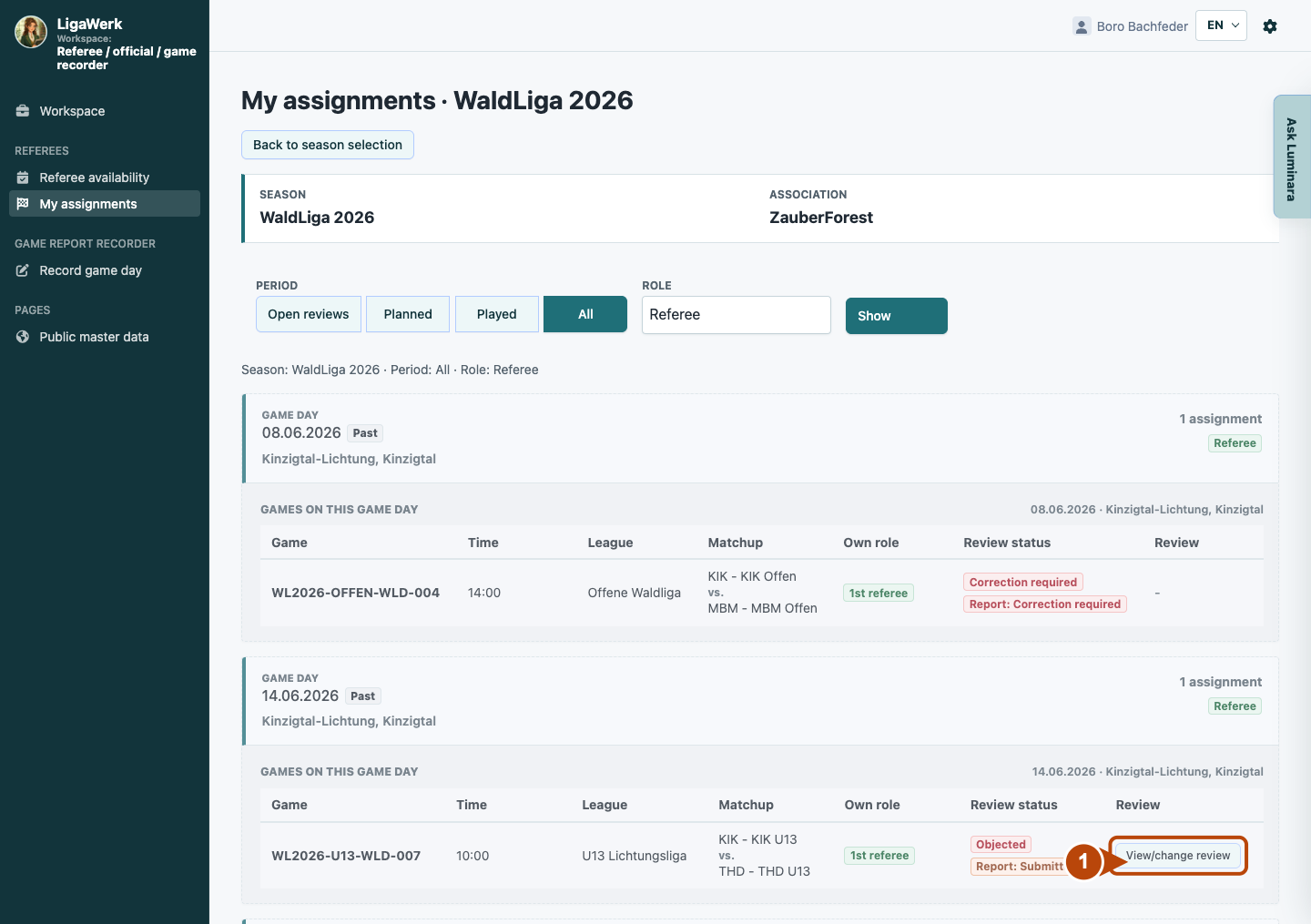
My assignments → Referee → All
1 · Find your own reviewable game
- What you do
- Check season, period and own role. Find the submitted report for your game and open “View/change review”. “Open reviews” finds outstanding feedback; All also shows previously commented cases.
- How to recognise the result
- Your own referee review opens for the specific game. The example shows an already objected report that remains submitted.
Number one marks review access. Submitted report status and your own feedback are separate information.
Review game report → Result, teams, periods and events
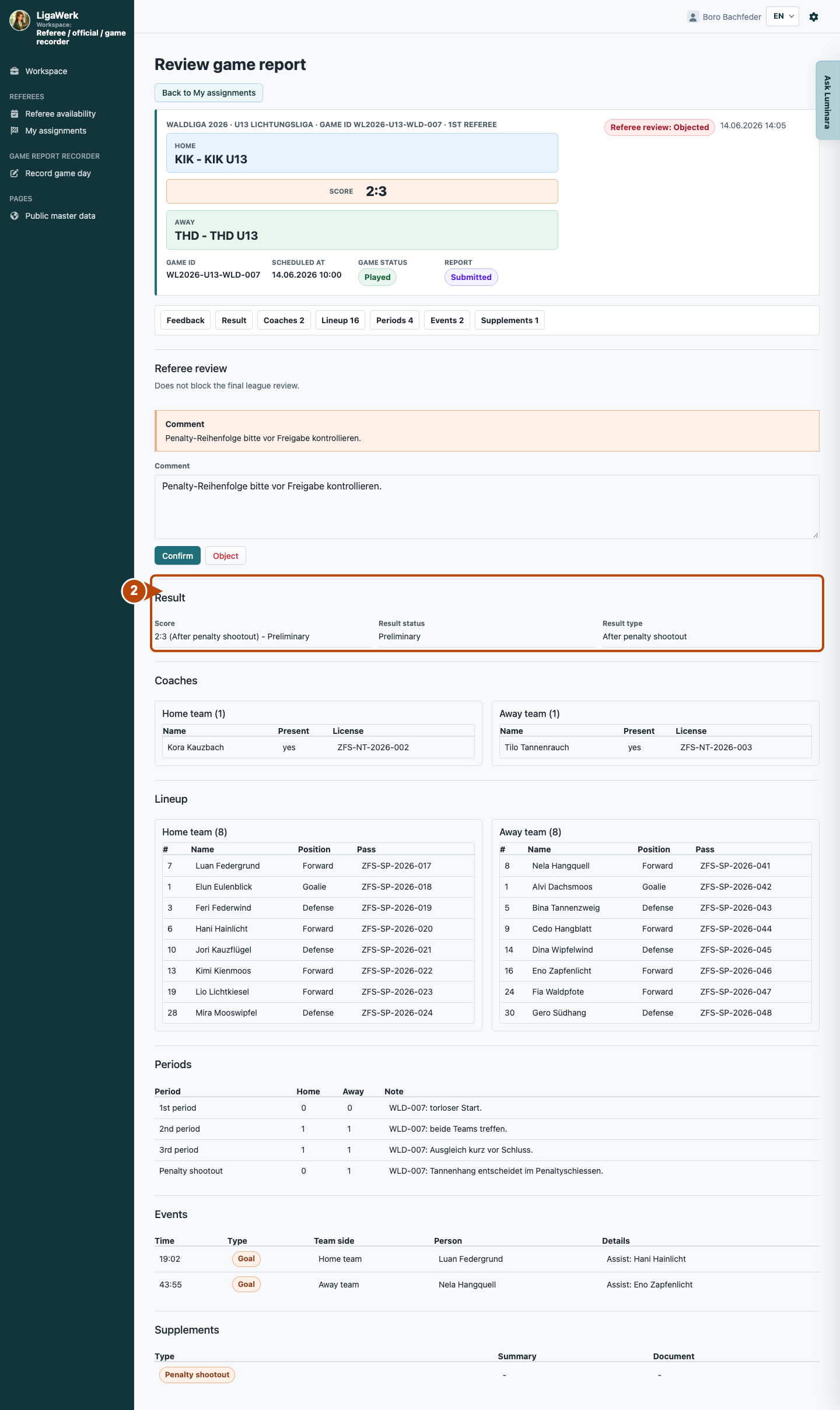
2 · Compare the recorded information
- What you do
- Compare result, coaches, lineup, periods, events and necessary supplements with your confirmed observations. Section navigation leads to report parts.
- How to recognise the result
- You can identify discrepancies precisely. The review page displays report data for reading, without changing it as a referee.
Number two frames the result. The full view shows the other report sections and retains game and role context.
Review game report → Referee review
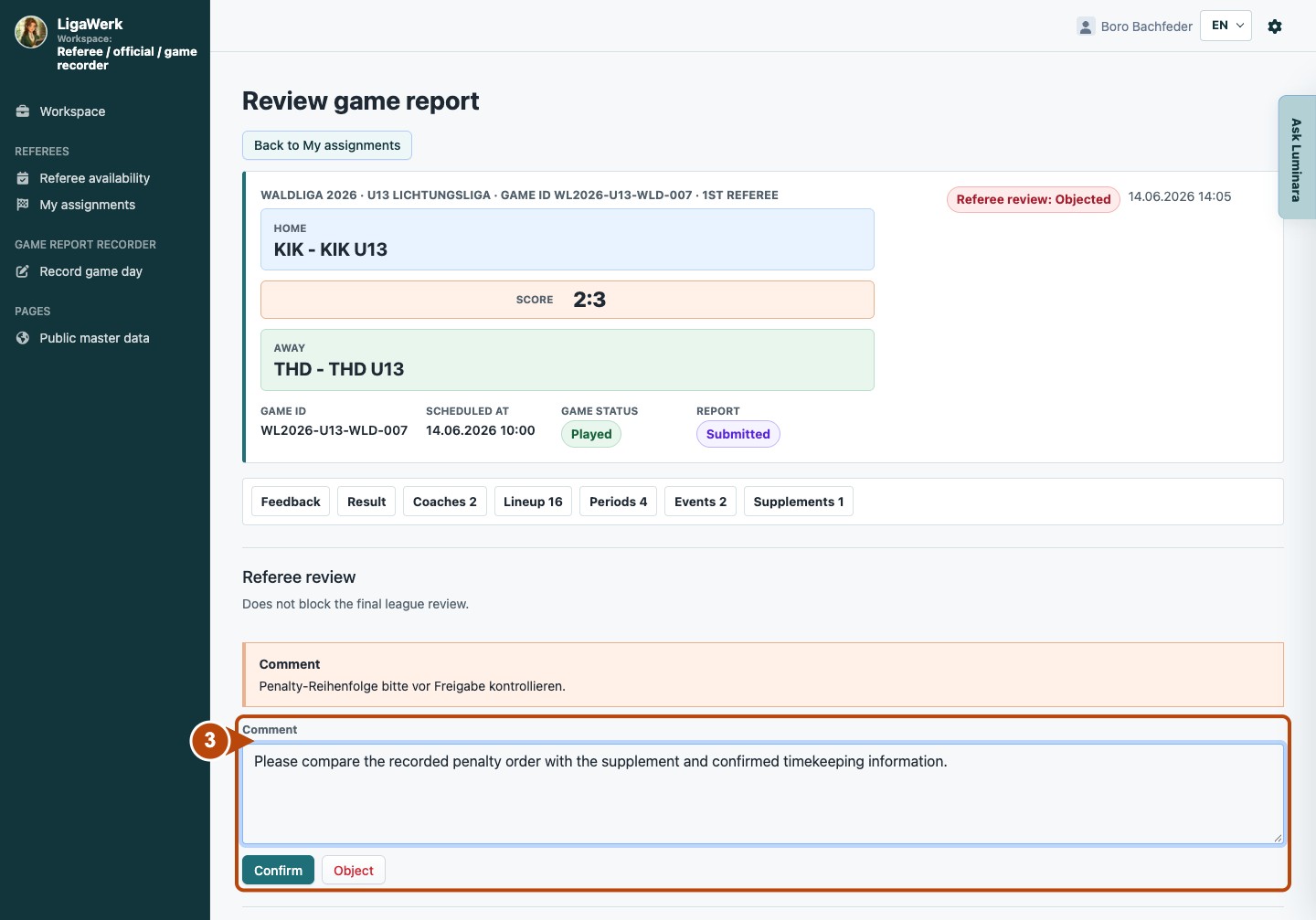
3 · Document clear feedback
- What you do
- Describe a discrepancy precisely in “Comment”. Send feedback with “Confirm” or “Object”; an objection requires a comment.
- How to recognise the result
- Your decision and comment are stored with the report. This image shows a new comment before sending; the previous objection remains saved.
Number three frames Comment and both actions. Nothing was submitted here. An objection does not automatically reopen the report for correction; final league approval remains separate.
How to start in the demo
Referee / Official · You start in “My assignments” with the Referee role filter. Open a submitted report with “Review now” or “View/change review”. Unsubmitted games do not offer this review.
The demo opens a new tab, signed in to the matching workspace. This explanation stays open.